Why is my website slow? How to read a PageSpeed Insights report
Prerequisites
- WordPress
Overview
A PageSpeed Insights score is not a measurement of how fast your website is for the people who visit it. It is a simulation, run once, on a mid range Android phone on a deliberately throttled mobile connection, and it is normal for the same page to score differently ten minutes later. The part of the report that describes real people sits above the score, in the panel called “Discover what your real users are experiencing”, and it is drawn from actual Chrome visits over the previous 28 days. That panel only appears once a website has enough traffic for Google to publish it, so plenty of small business websites will never see it, and this guide covers what to do in that case. It works through the report from the top down: which panel to read first, what the five measurements underneath the score actually mean, why the mobile and desktop tabs disagree with each other, and how to work down the Insights list instead of chasing the number. It finishes with the five things that usually make a WordPress website slow, in the order they normally bite, and the exact thing to send your web person so the conversation goes somewhere.
Test the page your visitors actually land on#
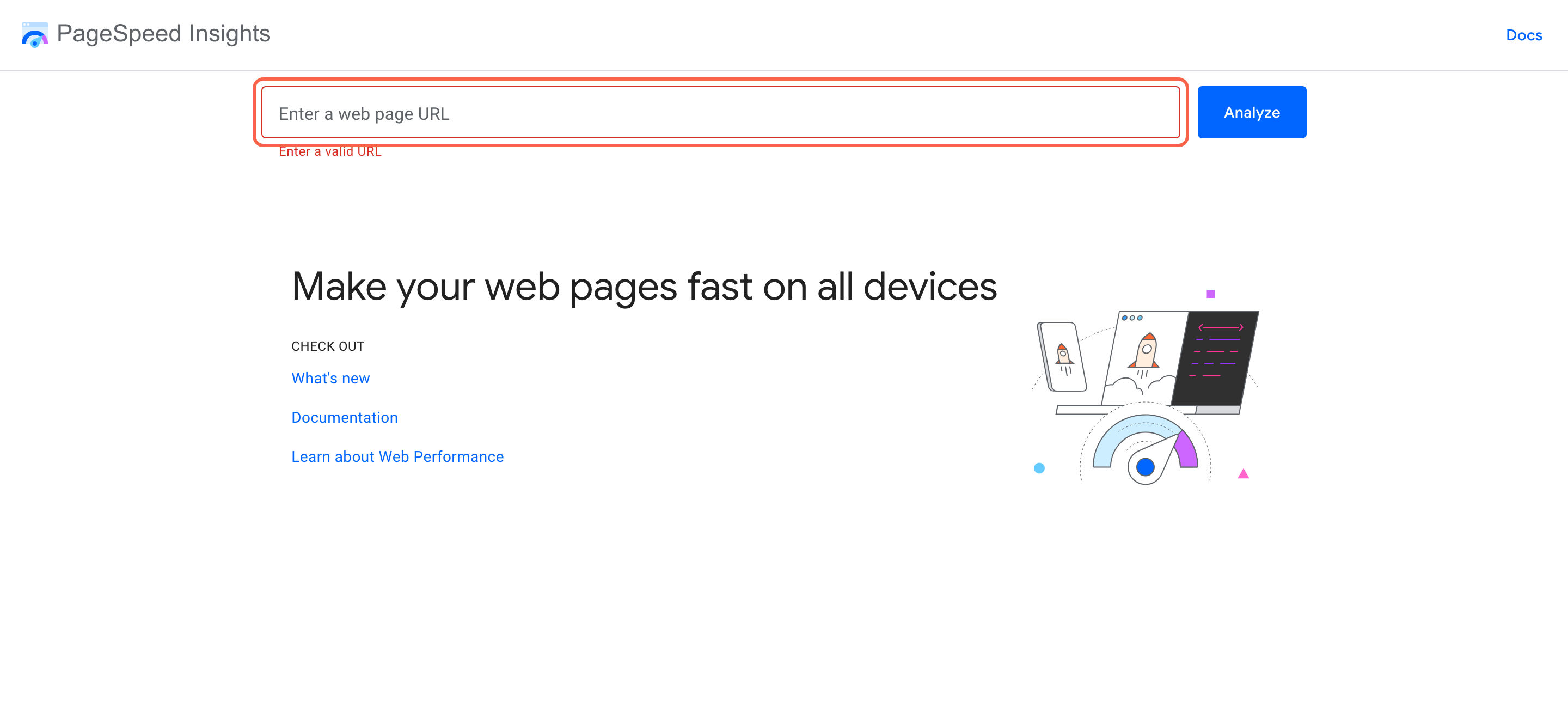
Start with the right page, because the report describes one page at a time and your home page is often not the slow one. Go to pagespeed.web.dev, paste the full web address of the page you want to check into the box, including the https:// at the front, and click Analyze. Give it about a minute.
If people mostly arrive on a service page or a product page from Google or from an ad, test that page rather than the home page. If someone has complained that your website is slow, ask them which page they were on. Testing the wrong page is the most common reason a report looks fine while the complaints keep coming.
Read the top panel before you look at the score#
The first panel, “Discover what your real users are experiencing”, is the only part of the report built from real people. It comes from Chrome visits to your website over the previous 28 days, on whatever phones, laptops and connections those people happened to have. If this panel has numbers in it, believe it over everything below.
When it has data, it shows a pass or fail line called the Core Web Vitals Assessment and three measurements: Largest Contentful Paint, how long until the main thing on the page appears; Interaction to Next Paint, how long the page takes to respond when someone taps or clicks; and Cumulative Layout Shift, how much the page jumps about while it loads. Underneath those sit First Contentful Paint and Time to First Byte. Google counts a page as good when 75 out of every 100 visits come in under 2.5 seconds for Largest Contentful Paint, under 200 milliseconds for Interaction to Next Paint, and under 0.1 for Cumulative Layout Shift.
On a quieter website you will often see what the screenshot below shows: the words No Data, and nothing else. That is normal and it is covered in the note above this step.

Treat the score as a simulation, not a stopwatch#
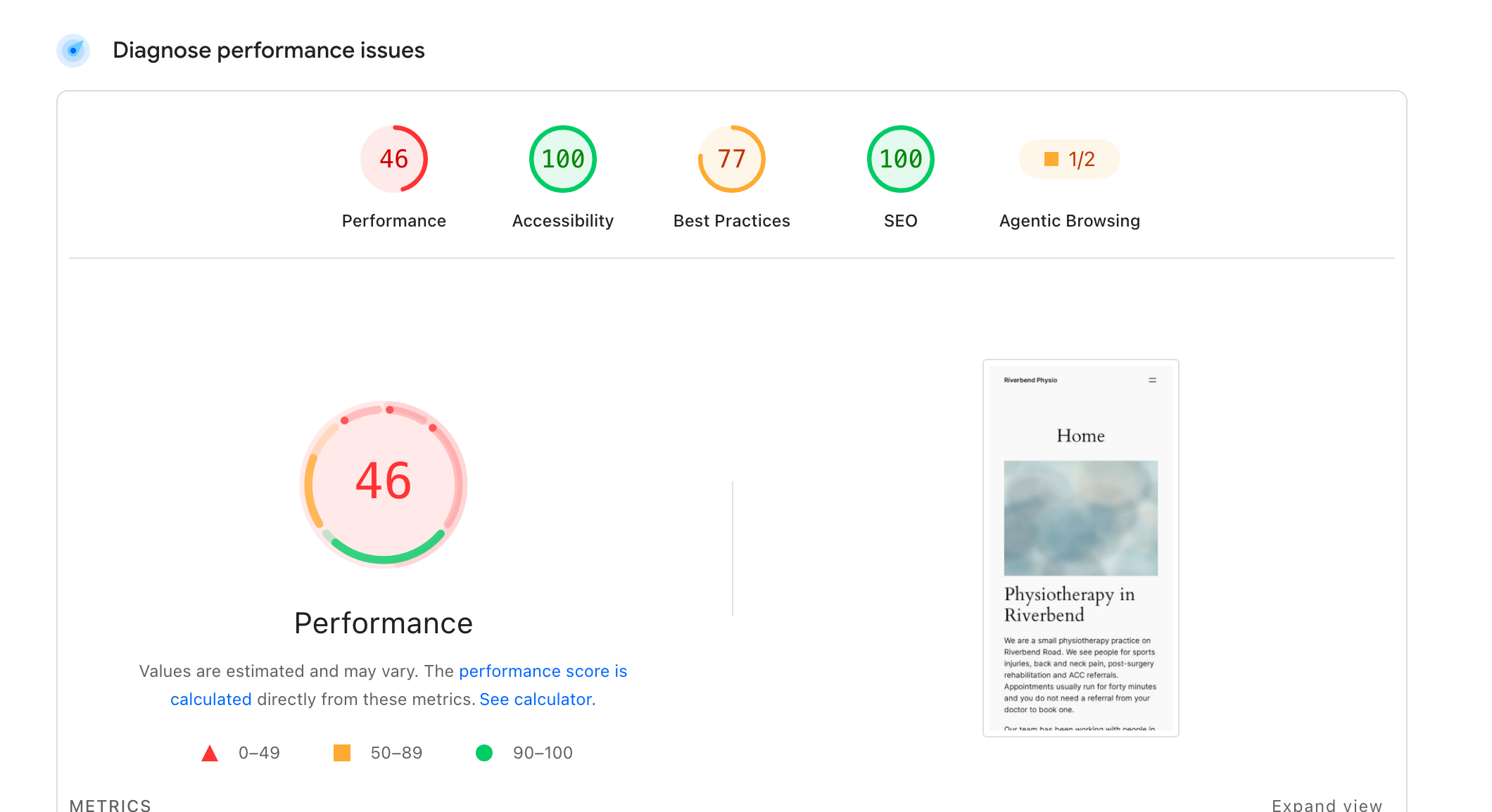
Now you can look at the number, knowing what it is worth. The big circle is a single score out of 100 for one simulated page load. Under 50 is red, 50 to 89 is orange, 90 to 100 is green. It is not a percentage, it is not a grade, and it is not what your visitors are experiencing.
The score is worth reading as a direction rather than a verdict. Red usually does mean something real is wrong and is worth someone’s attention. Orange is where most perfectly good small business websites sit. Chasing the last stretch from a solid 90 up to 100 is almost always a poor use of money, because the difference is invisible to a human being and the work needed to get there tends to be the fragile kind.
Read the five measurements and the conditions they were taken under#
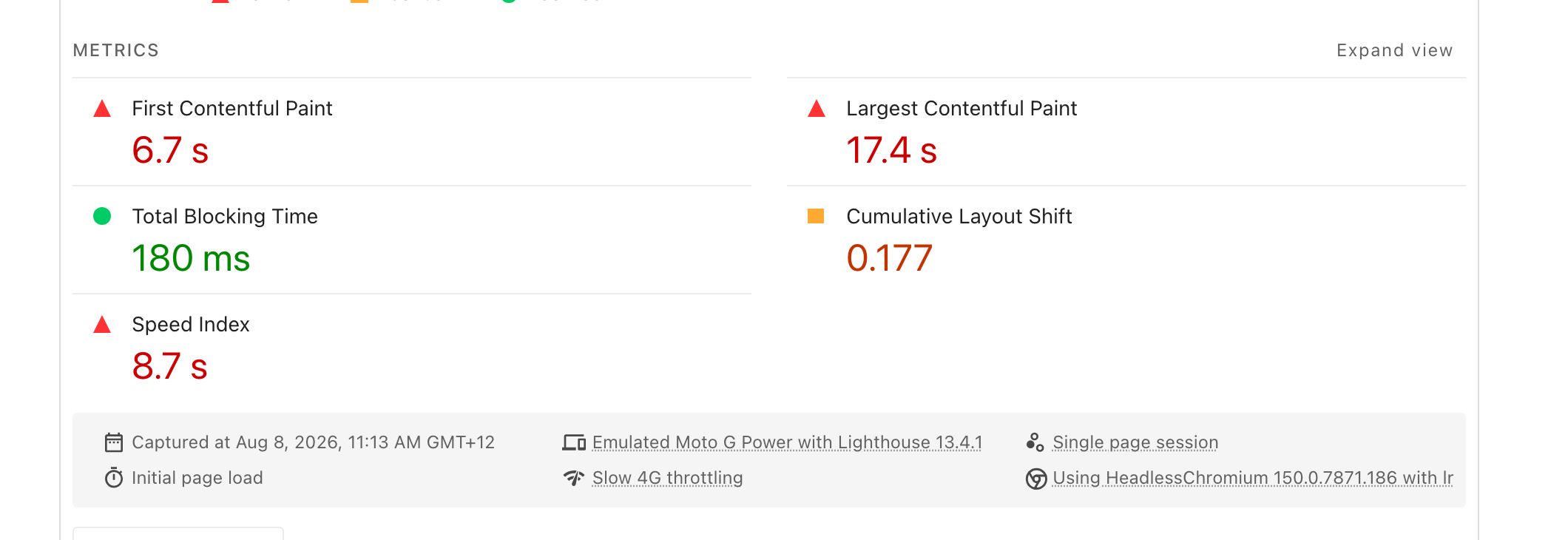
The score is worked out from the five measurements listed under it, so those are more useful than the number itself. Largest Contentful Paint is how long until the biggest thing on screen finishes loading, usually your header image, and it is worth 25 per cent of the score. Total Blocking Time is how long the page was frozen and unable to respond, worth 30 per cent. Cumulative Layout Shift is how much the page moved around while loading, worth 25 per cent. First Contentful Paint and Speed Index are worth 10 per cent each.
Read the colours one at a time rather than as a group. In the report below, Total Blocking Time is green and Cumulative Layout Shift is orange while everything else is red, and that tells you far more than the single number does: the page responds to taps perfectly well, and it takes far too long to show anything.
Then read the grey strip along the bottom, which is the part almost everyone skips. It names the exact conditions: a simulated Moto G Power, an inexpensive Android phone, on Slow 4G throttling, loading the page once with an empty cache. Very few of your customers are on that phone on that connection with no cached copy of your website. That is deliberate, because it is a hard test rather than a typical one, and it is the single best reason not to panic at a red number.
One thing is missing from this list on purpose. Interaction to Next Paint, the responsiveness measurement from the top panel, cannot appear here, because it needs a real person tapping real things. Total Blocking Time is the closest the simulation can get to it.
Compare the Desktop tab against the Mobile one#
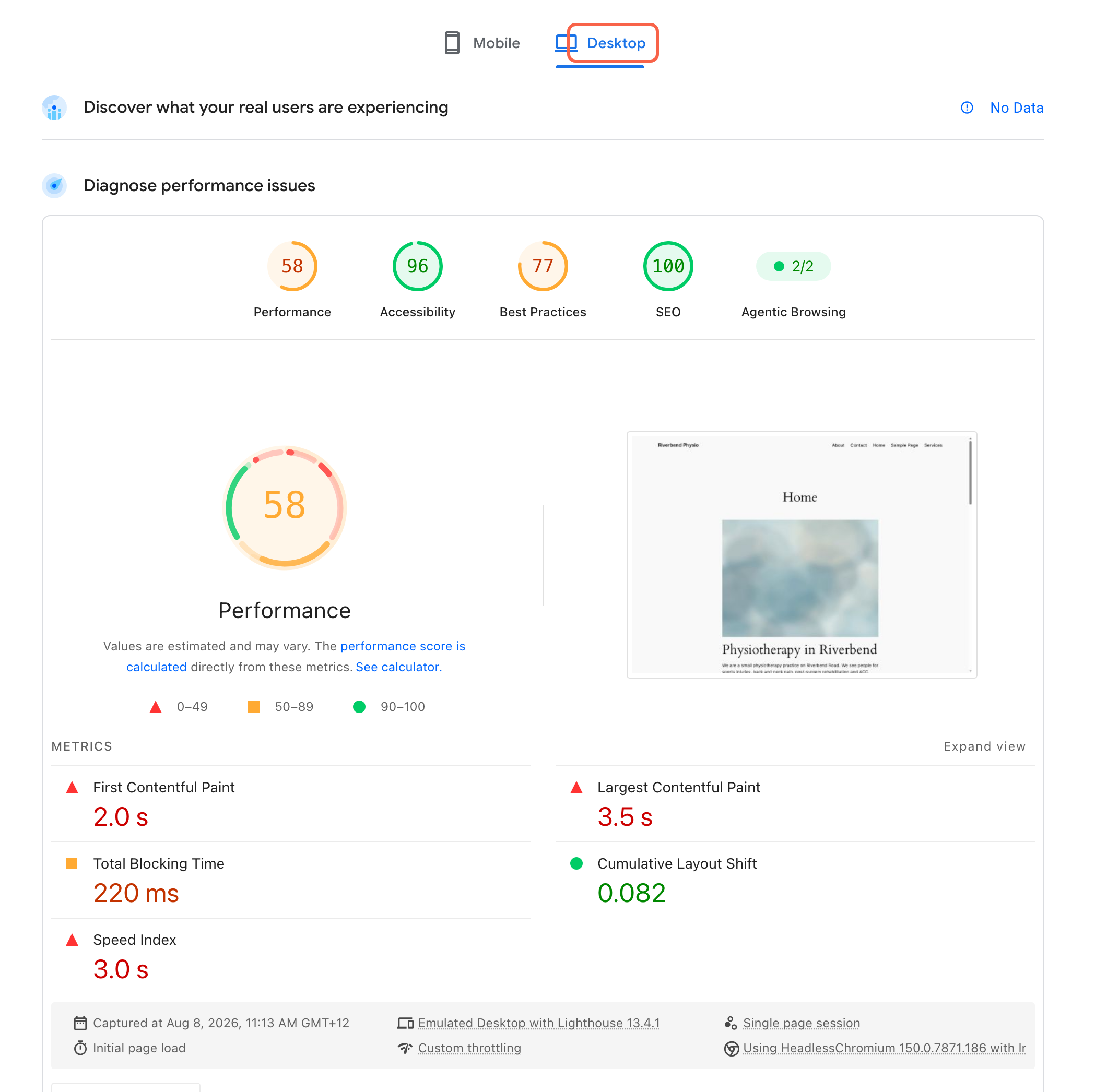
Click Desktop at the top of the report to see the same page tested as a laptop on a normal connection. This is the closest thing in the tool to the way you look at your own website, and the gap between the two tabs tells you who is actually suffering.
In the report below the same page scores 46 on mobile and 58 on desktop, and Largest Contentful Paint drops from 17.4 seconds to 3.5 seconds. A gap that size nearly always points at file sizes rather than at the website being badly built, because the same files are being pulled down a much slower connection. If both tabs are bad, the cause is more likely to be the server or something the page is running. If only mobile is bad, start with the images.
Google’s own assessment of your website uses the mobile figures, so mobile is the one to care about even if your own customers are mostly at a desk.
Work down the Insights list instead of chasing the score#
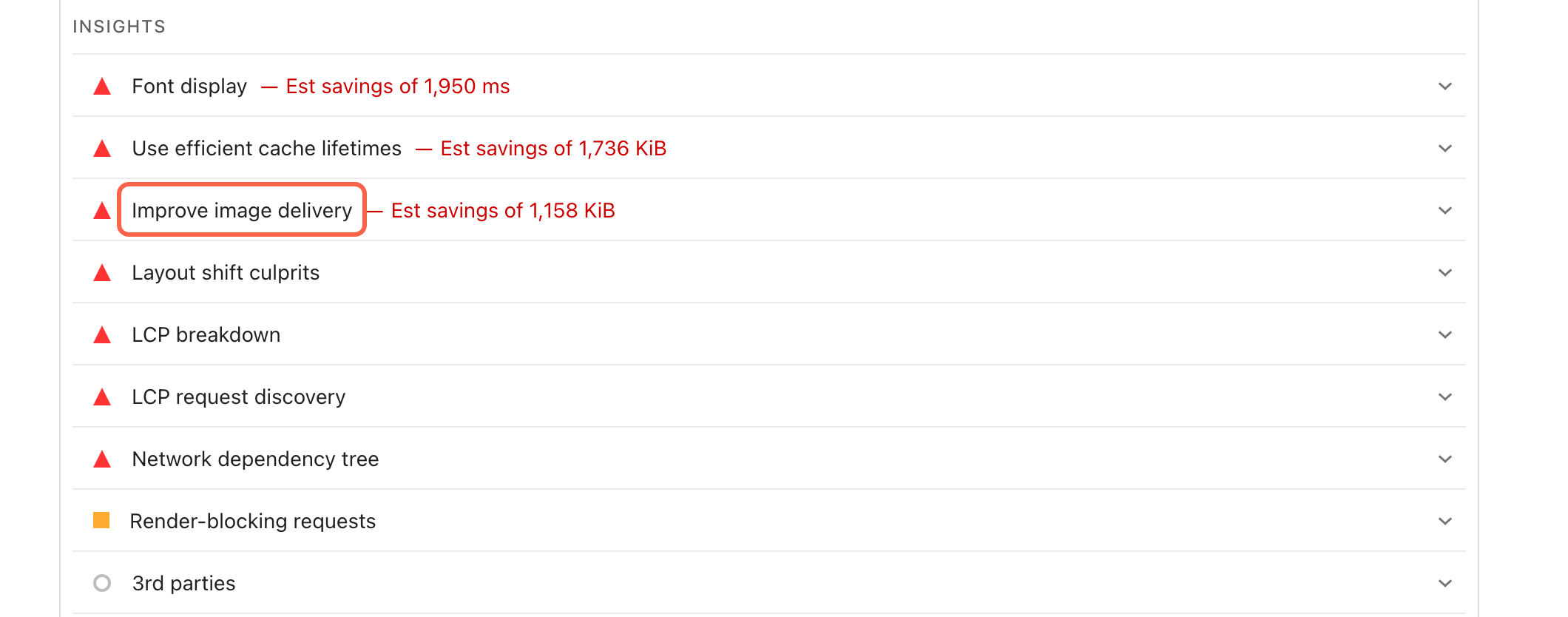
Scroll past the measurements to the list headed Insights. This is the useful half of the report, and it is ordered with the biggest wins at the top. Each line names one cause and, where it can, estimates what fixing it would save in seconds or in kilobytes.
Read the savings figures rather than the number of red triangles. In the list below, “Improve image delivery” is offering to save 1,158 KiB, which is more than a megabyte of pictures being sent to a phone for no reason, and that single line is worth more than the four items below it put together. Underneath Insights sits a second list called Diagnostics. It is genuinely useful background, but as the small print under it says, those items do not affect the score directly, so do not start there.
Open one insight to see what it is really telling you#
Click the arrow on the right of any line to open it. Most of them expand into a short explanation and a table, and you do not need to understand the table to get value out of it. Knowing which line matters is enough to have a sensible conversation.
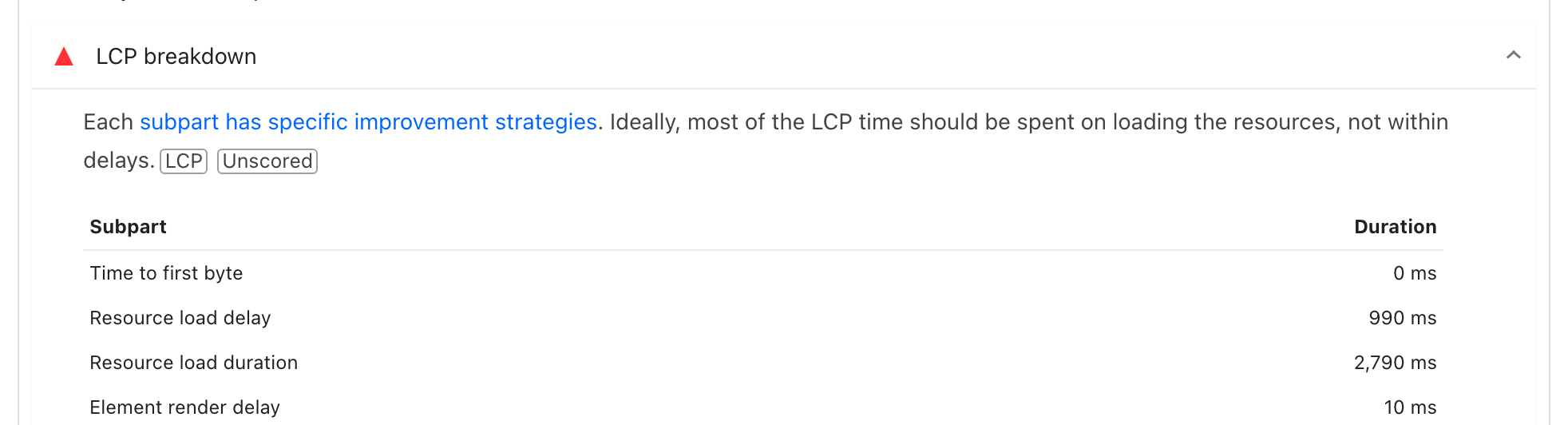
The most worthwhile one to open is “LCP breakdown”, because it splits the slowest part of the load into four stages and shows you which stage is eating the time. In the example below the server responded instantly and the page rendered instantly, but 2,790 milliseconds went on downloading a single file. That is a picture that is too big, not a slow website, and it is a completely different piece of work from a slow server.
Check the five things that usually cause this on a WordPress website#
Whatever the report says, the cause is nearly always one of five things, and they turn up in roughly this order. Oversized images are first by a long way. A photo straight off a phone or a camera is several thousand pixels wide and several megabytes, and it will be shown at a few hundred pixels. Resizing before uploading fixes more slow websites than anything else on this list.
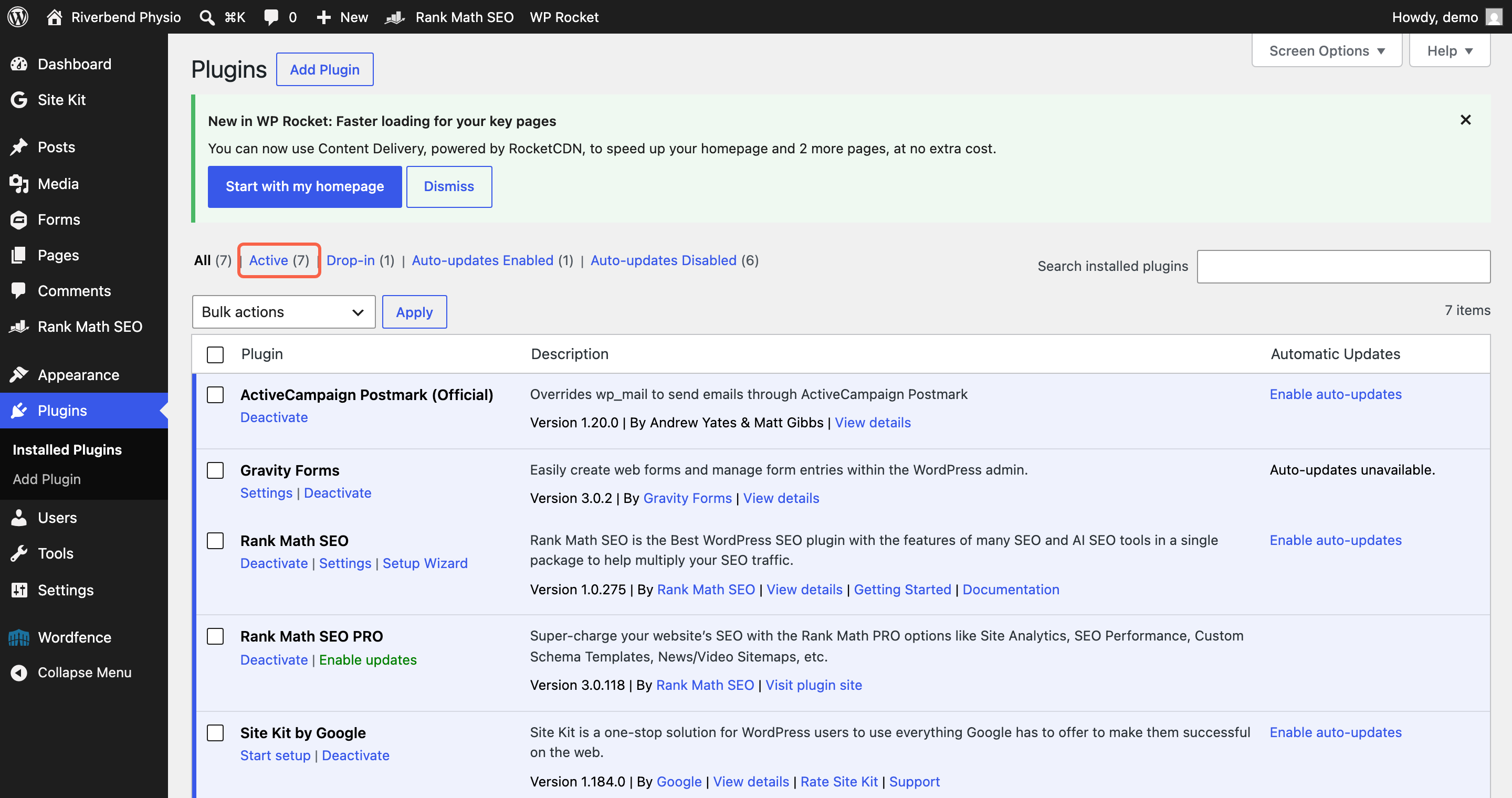
Too many plugins is second. Every active plugin can add its own scripts and styles to every page, including pages that have nothing to do with it. In the left menu go to Plugins, then Installed Plugins, and look at the number next to Active at the top. Under about fifteen is unremarkable. Thirty and up is worth a conversation, particularly if some of them do jobs you no longer need.
Cheap shared hosting is third, and it shows up as a slow Time to First Byte in the top panel, or as a large “Time to first byte” line in the LCP breakdown. On budget shared hosting your website is one of hundreds on the same machine, and there is nothing you can change in WordPress that will fix it. No caching is fourth: without it WordPress rebuilds every page from scratch on every single visit. We use WP Rocket for this on the websites we look after, mainly because its defaults are sensible enough that a non technical person is not left making twenty decisions. Plenty of other caching plugins do the same job.
Third party scripts are fifth and the most overlooked, because they are usually things the business asked for: a chat widget, a booking tool, tracking tags, a review carousel, an embedded video. Each one loads code from someone else’s server, and if that server is having a bad morning so is your website. The “3rd parties” line in the Insights list will tell you which ones are on the page. If you are not using one any more, having it removed is free.
Send your web person a link and a sentence, not a red score#
Forwarding a screenshot of a red number is the least useful thing you can send, because it cannot be opened, compared or acted on. Instead click Copy Link at the top right of the report. That gives a permanent web address for the exact run you were looking at, which anyone can open and read in full.
Send that link with four short things: which page it is, whether the top panel had real visitor data or said No Data, what is actually slow from a human point of view, and when it started. Something like: “Our services page is scoring 46 on mobile. The real user panel says No Data. On my phone on mobile data the header photo takes about ten seconds to appear, and it started some time after we added the booking widget in June. The report is here: [link].”
That message can be worked on. A red number cannot. It says which page, what a person is experiencing, what changed and when, and it hands over the evidence rather than a description of it.

If the report pointed at your images, the guide on resizing pictures before you upload them covers the practical side of that. If it pointed at your server response time, the guide on setting up caching is the one to read next. And if a slow website turned out to be an out of date one, our guide on how to update your WordPress plugins without breaking your site walks through doing that safely.
If you would rather not work through any of this yourself, performance is part of what we look after on the websites we host. Have a look at managed WordPress hosting and maintenance, or send us the report link and we will tell you what we see in it.
Tested on WordPress 7.0.3 with WP Rocket 3.23.1.1, Rank Math 1.0.275, Wordfence 8.2.2, Google Site Kit 1.184.0. PageSpeed Insights running Lighthouse 13.4.1., 8 Aug 2026
Rather not do it yourself?
We can take this off your plate
If you would rather someone else handled the fiddly bits, that is what we are here for. Tell us what you are trying to sort out and we will point you in the right direction.
Let us give you a handWritten by