How to update your WordPress plugins without breaking your site
Prerequisites
- WordPress
Overview
Updating WordPress plugins is safe as long as you have a backup you can go back to and you update them one at a time, checking your website in between. You need an Administrator account on your website to do this, because plugin updates live behind the Plugins menu. If your left menu has no Plugins item, your account is an Editor, and you will need to ask whoever looks after your website. This guide walks through finding the plugins that need updating, confirming your backup, running the updates one by one, and what to do in the worst case, when an update causes a fatal error and your website stops loading. WordPress has a built in recovery mode for exactly that situation, and it emails you a link that gets you back into your dashboard even when the front of your website is down.
Check which plugins are asking to be updated#
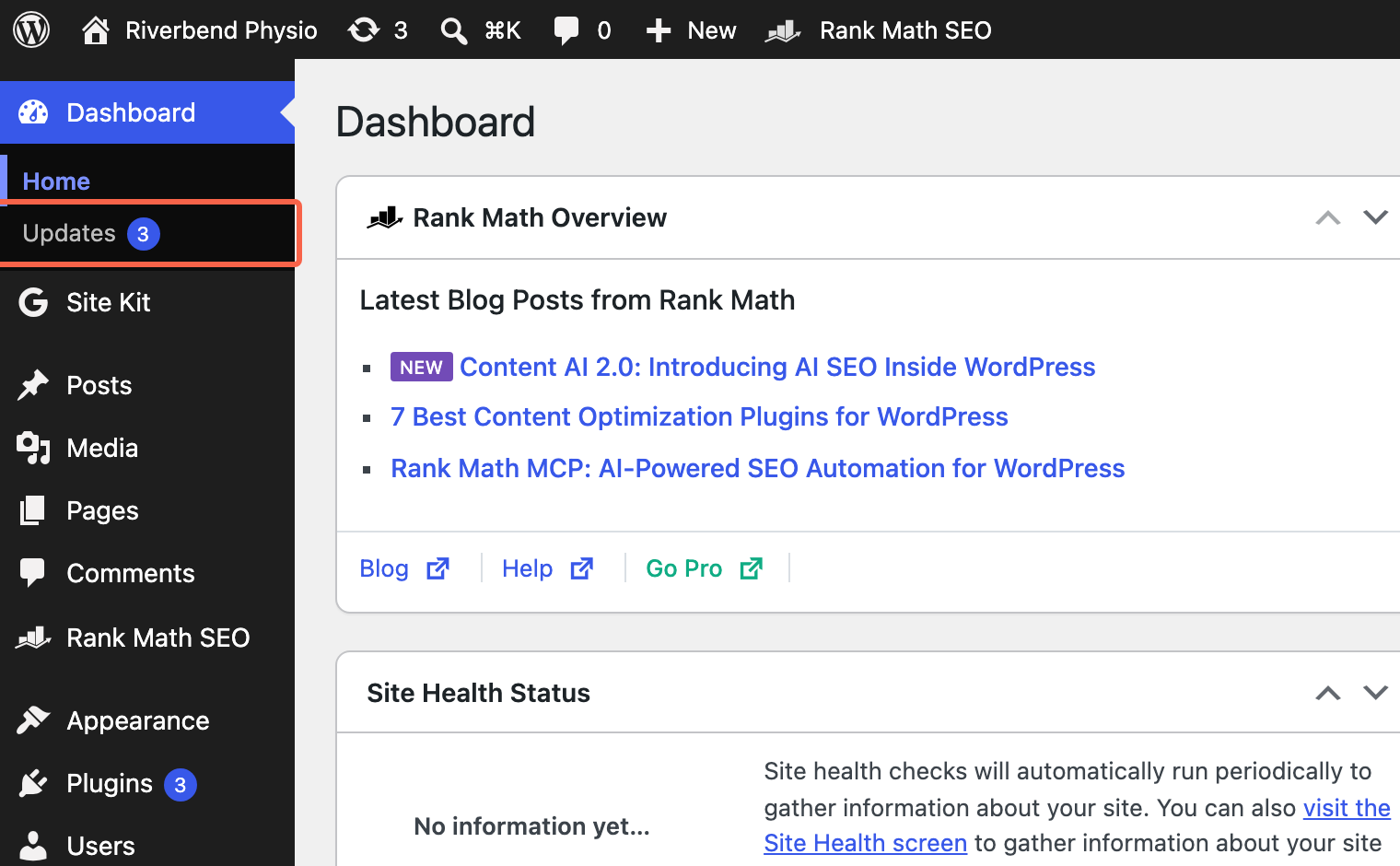
Start by seeing the whole list in one place, so you know how much you are taking on before you change anything. In the left menu, hover Dashboard and click Updates. The number next to Updates is how many things on your website are out of date.
Scroll down to the Plugins section. Each plugin tells you the version you are on and the version you would be moving to, along with a line about whether the plugin author says it works with your version of WordPress. Read that list before you do anything else. If a plugin is jumping a whole major version, for example from 1.x to 2.x, that is the one most likely to cause trouble.
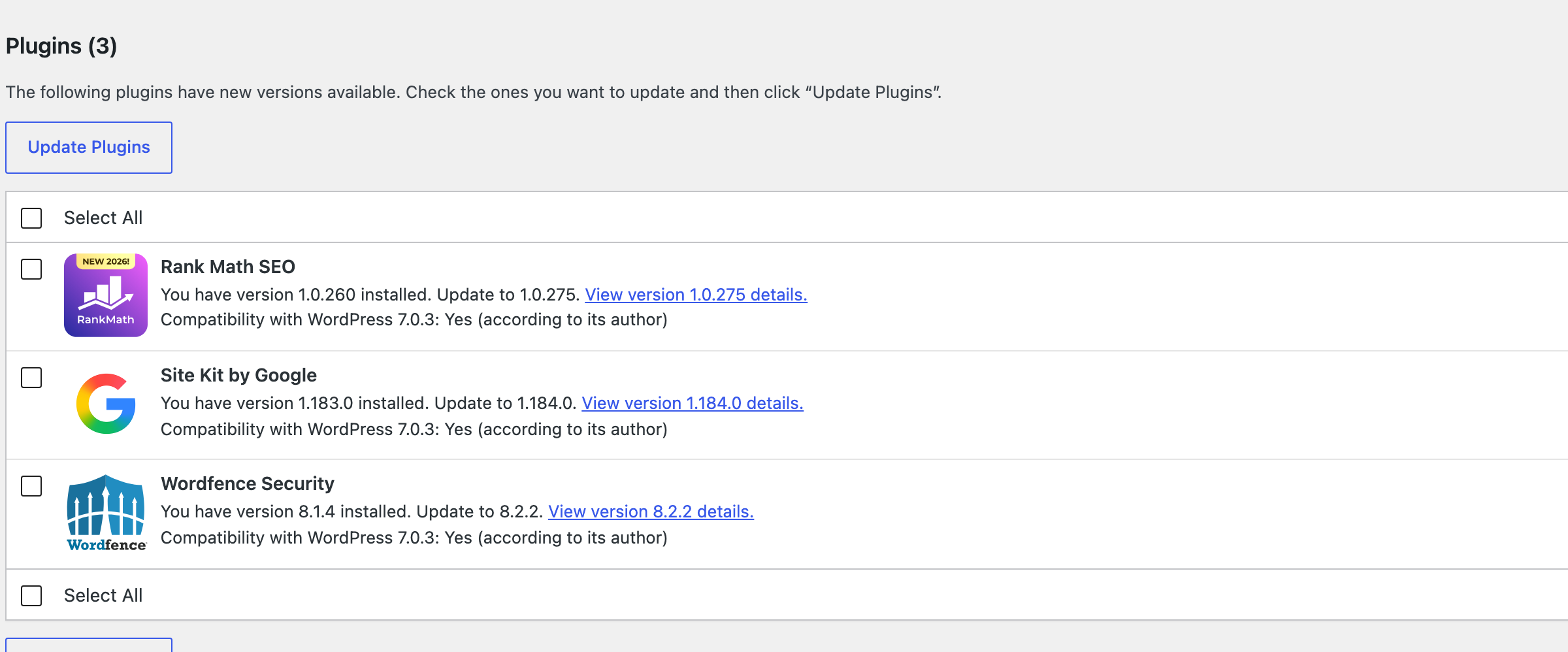
There is an Update Plugins button and a Select All tickbox on this screen. Leave them alone for now. Updating everything in one go is the fastest way to do it and the slowest way to work out which plugin caused a problem.
Make sure you have a backup you can go back to#
This is the step that turns a bad update from a disaster into an inconvenience. Before you touch an update, confirm that a backup of your website exists and that you know who can put it back.
Backups sit with your hosting, not inside WordPress, so this is a question for whoever hosts your website. Ask before you update, not after. “Do you take daily backups of this website, how far back do they go, and how do I request a restore?” is the whole question.
If the answer is no, you do not have to stop, but you do have to do a bit more work first. You can take a backup yourself: a copy of your website’s files and a copy of its database, downloaded and kept somewhere off the website. Most hosting control panels will do both from the file manager and the database section, and your host can point you at them.
If you have no backup and no way in other than the dashboard itself, stop here and sort that out first. That combination is the one version of this job that genuinely is risky.
Note which version each plugin is on now#
Write down the current version numbers, because if something breaks you will want to tell your host exactly which plugin went from which version to which. In the left menu, click Plugins. Each plugin shows its version under the description, and the ones with updates waiting have an orange bar underneath saying “There is a new version of … available”.
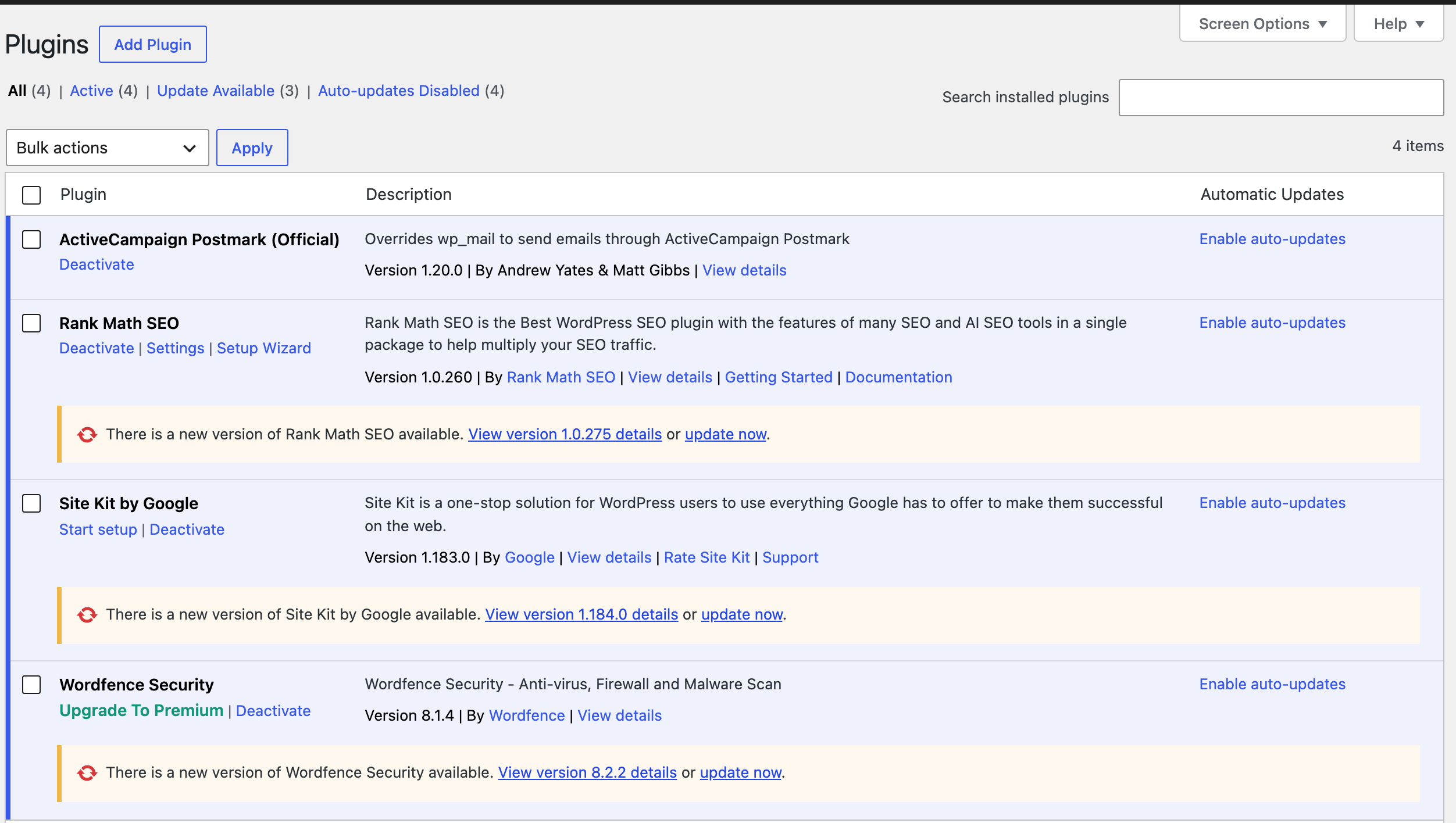
The links across the top of the list let you filter to Update Available, which is a quicker way to see only the plugins that need attention. Copying that shortlist and the version numbers into an email to yourself takes a minute and saves a lot of guessing later.
Update one plugin at a time and check your website after each one#
Doing them one at a time is the entire trick. If four plugins update together and your website breaks, you have four suspects. If you update one and your website breaks, you have your answer.
On the Plugins screen, find the first plugin on your list and click the “update now” link in the orange bar under it.

The bar changes to “Updating…” and then to a green “Updated!” with a tick, and the version number above it changes to the new one. Do not close the tab or click anything else while it says Updating.

Now open your website in a second browser tab and look at it. Load the home page, then load the pages that matter most to you, which for most businesses means a product or service page, the contact form, and the checkout if you have one. Click through one form or one add to cart. Then go back to the Plugins tab and do the next one.
This is where people get impatient and start ticking boxes to do the rest in bulk. If you have more than about six updates waiting, it is fair to group the small ones, but keep anything to do with payments, forms, bookings or page layout on its own.
Recognise the critical error message if your website stops loading#
Occasionally an update will not get on with the rest of your website and everything goes white. This is the moment people panic, so it helps to know what you are looking at. Visitors to your website see a short white page saying “There has been a critical error on this website.”

If you try to open your dashboard you get the same message with an extra line: “Please check your site admin email inbox for instructions.” That line is the important one. WordPress has already worked out which plugin caused the problem and has emailed you about it. It only sends that email when the error happens on a dashboard or login page, which is why the message on the front of your website does not mention it.
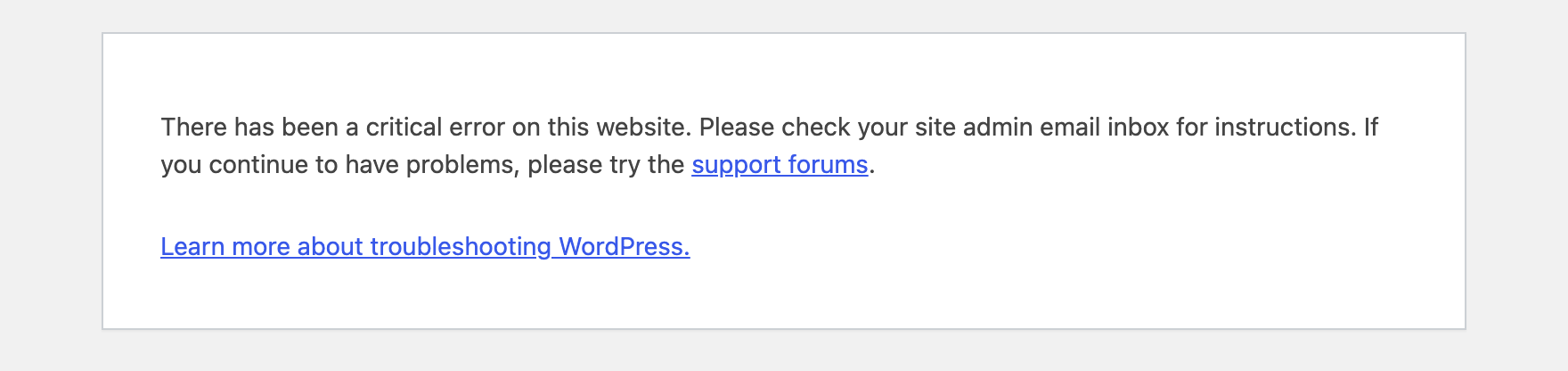
Nothing has been deleted. Your pages, products and orders are all still there. What has happened is that one plugin file is asking WordPress for something that is not there any more, and WordPress has stopped rather than showing a half broken page.
Use the recovery link in your email to get back in#
WordPress emails a one time link that lets you into your dashboard even while the website is down. Check the inbox for the administration email address on the website, which is often the owner’s address rather than yours, and look for a message with the subject “Your Site is Experiencing a Technical Issue”, sent with your website’s name in front of it.
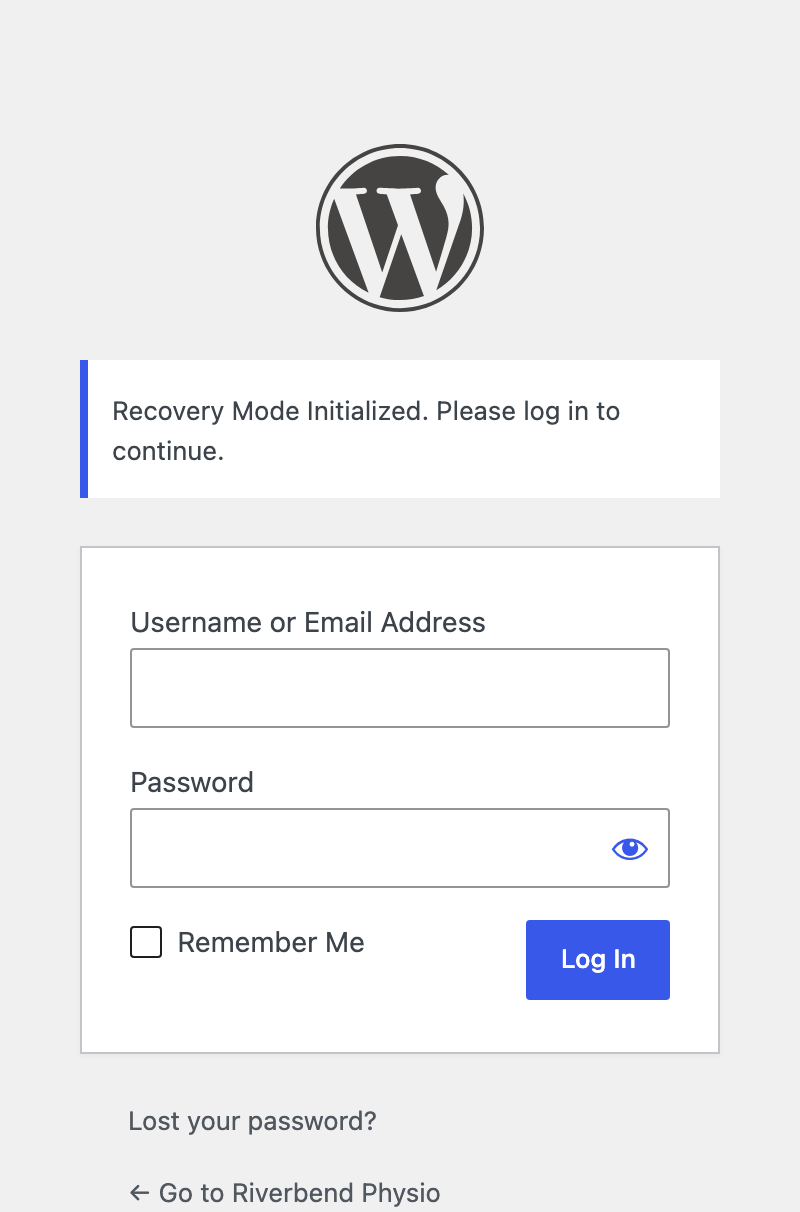
The email names the plugin that failed, in a line that reads “WordPress caught an error with one of your plugins”. Further down there is a link to what WordPress calls recovery mode. Click it. You are asked to log in as normal, under a message reading “Recovery Mode Initialized. Please log in to continue.”
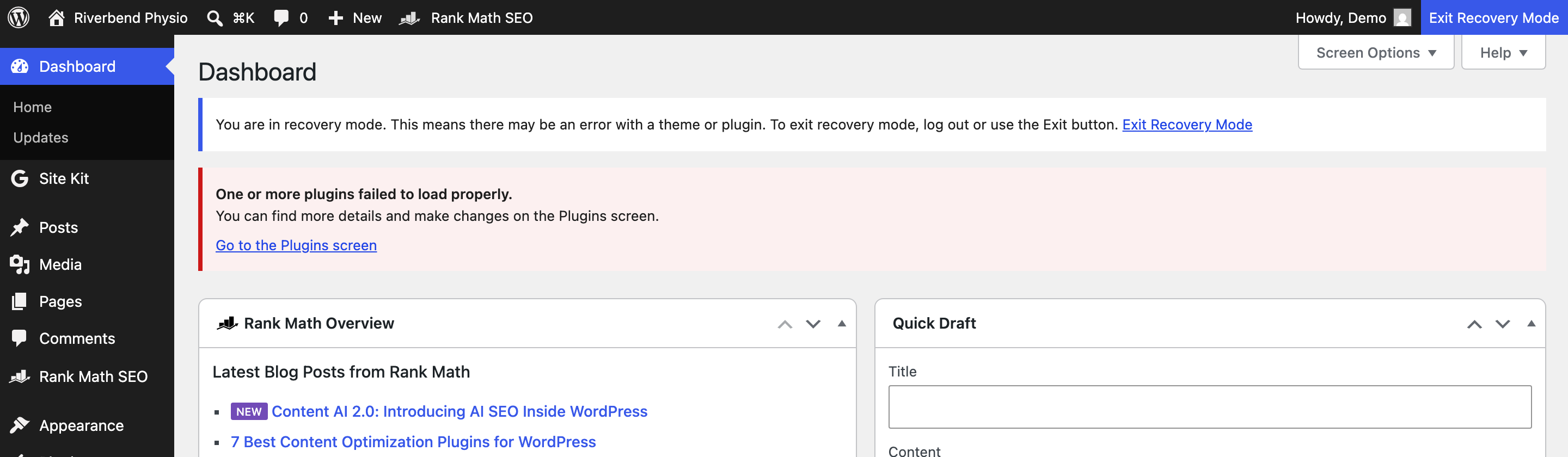
Once you are in, a bar across the top of every screen tells you that you are in recovery mode, with an Exit Recovery Mode button in the top right. While you are in it, WordPress switches off the plugin that failed so you can move around the dashboard normally.
If you get to this point and the link has already been used, or the email is older than a day, that link is spent and WordPress will not send you another one until 24 hours after it sent the first. There is nothing you can do from the dashboard to hurry it up, so go to the last two steps and ask for help.
Deactivate the plugin that failed#
Switching the culprit off gets your website back online for customers while you work out what to do about it. In the left menu, click Plugins. The plugin that caused the problem is marked in red with the message “This plugin failed to load properly and is paused during recovery mode”, along with the file and line number that failed.
Click Deactivate on that plugin. There is a Resume link right next to it, which puts the broken plugin back and breaks your website again, so take the moment to click the correct one.

Then click Exit Recovery Mode in the bar at the top and load your website. It should come back.
Be honest with yourself about what that plugin was doing. If it was running your contact form or your checkout, that part of your website is now switched off, so this is a holding position and not a fix. Send the error message to your host or your web person the same day, including the plugin name and the version it moved to.
Ask your host to roll back if you are still locked out#
If the recovery email never arrived, or your website is still down after deactivating the plugin, stop trying things and ask for the backup to be restored. Guessing at this point tends to make the repair longer and more expensive.
Give whoever helps you four things: the address of your website, the name of the plugin you updated, the version it went from and to, and the approximate time you ran the update. With that, a restore to the state your website was in before the update is usually quick, and it is the reason the backup step at the start of this guide is worth the five minutes.
Turn on automatic updates for the low risk plugins#
Once you are back on stable ground, you can stop doing this by hand for the plugins that rarely cause problems. On the Plugins screen there is an Automatic Updates column on the right with an “Enable auto-updates” link against each plugin. Click it and the link changes to “Disable auto-updates”, with a line underneath telling you when the next automatic update is scheduled.
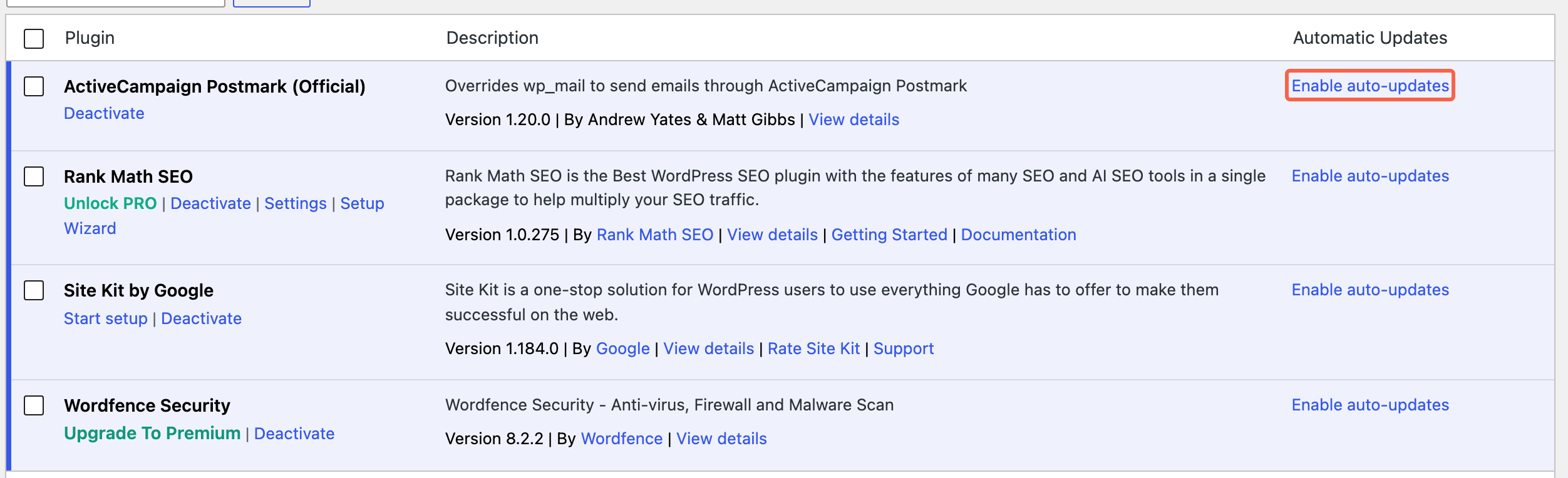
Turn it on for the quiet, well maintained plugins such as your SEO and security plugins, where a security fix landing quickly is worth more than the small chance of a wobble. Leave it off for anything that touches payments, bookings, forms or the way your pages are laid out, and keep updating those by hand using the steps above.
If keeping on top of this is not a good use of your week, it is the sort of thing we do quietly in the background on a WordPress care plan, including the daily backup that makes a bad update recoverable. Get in touch and we can take it off your list.
Tested on WordPress 7.0.3 with Rank Math 1.0.275, Wordfence 8.2.2, Google Site Kit 1.184.0, Postmark 1.20.0, 8 Sep 2026
Rather not do it yourself?
We can take this off your plate
If you would rather someone else handled the fiddly bits, that is what we are here for. Tell us what you are trying to sort out and we will point you in the right direction.
Let us give you a handWritten by