How to reset a WordPress password for someone else when the email never arrives
Prerequisites
- WordPress
Overview
By the end of this you will have got your developer, staff member or contractor back into your website after the WordPress welcome or password reset email failed to arrive, and you will know whether your website can send email at all. The quickest fix is the Send password reset link on the Users screen, but if your website’s email is broken that link will not arrive either, so this guide also covers setting a new password on their account yourself, handing it over without emailing it, and having them change it straight away. It takes about ten to fifteen minutes. You need an Administrator account on your website to do this: if your left menu has no Users item, your account is an Editor, and you will need to ask whoever looks after your website.
Check the email address on their account#
Before you assume your website’s email is broken, rule out the ordinary explanation. A typo in the address means WordPress sent the message perfectly well, to an inbox nobody is watching.
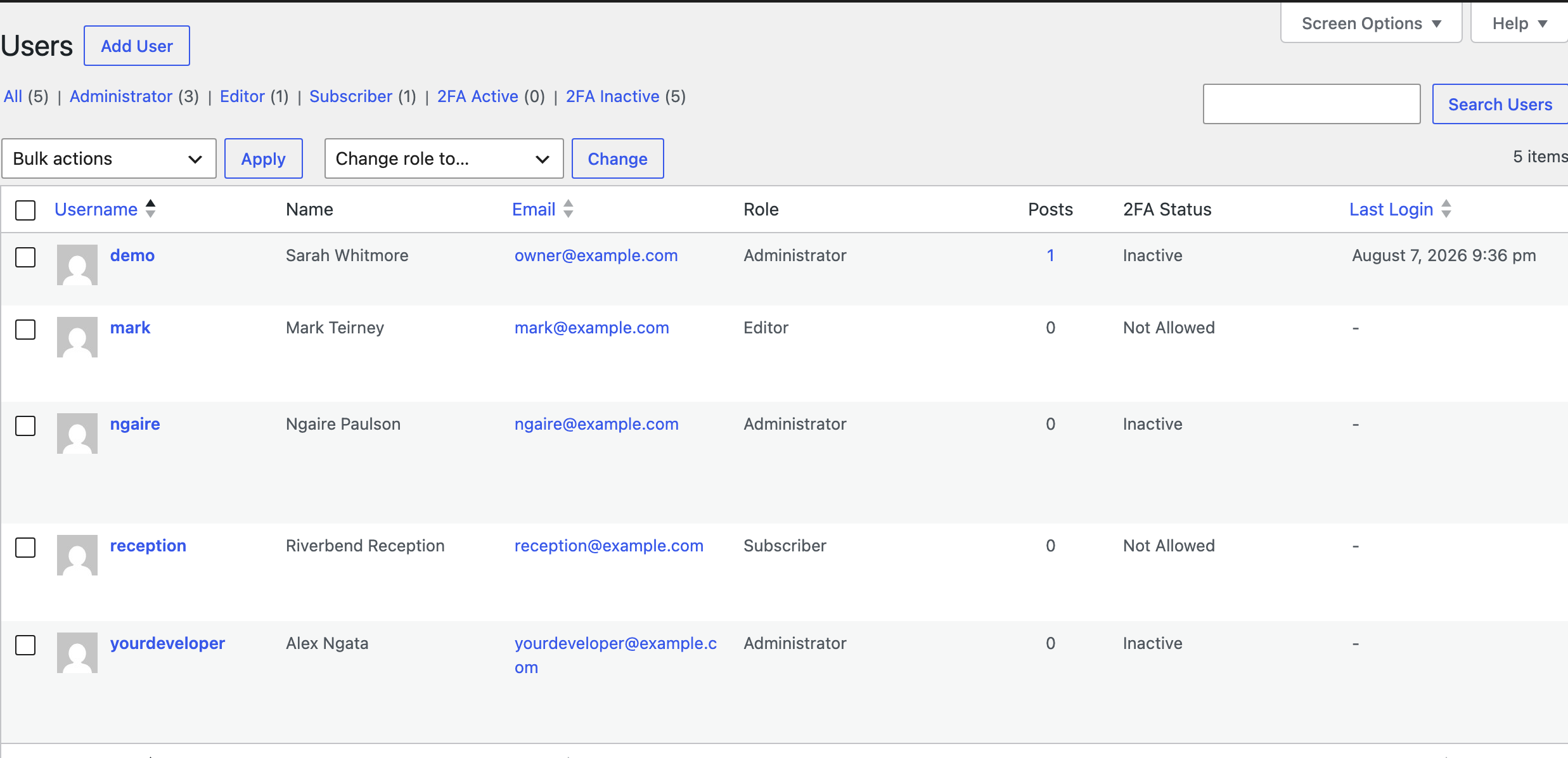
Log in to your dashboard, usually your domain followed by /wp-admin. In the black menu down the left, click Users. If there is no Users item in that menu, your account is not an Administrator and you will not be able to go any further, so this is the point to ask whoever looks after your website. Otherwise, find the person in the table and read the Email column against what they actually gave you, character by character. Common culprits are a missing letter in the domain, .co.nz where it should be .com, and an old address at a company they have left.
Ask them to look in their junk mail and try the reset themselves#
Email from a website very often lands in junk or clutter rather than the inbox, because it comes from a server the recipient has never had mail from before. Ask them to search their whole mailbox, junk folder included, for the name of your website rather than scrolling the inbox.
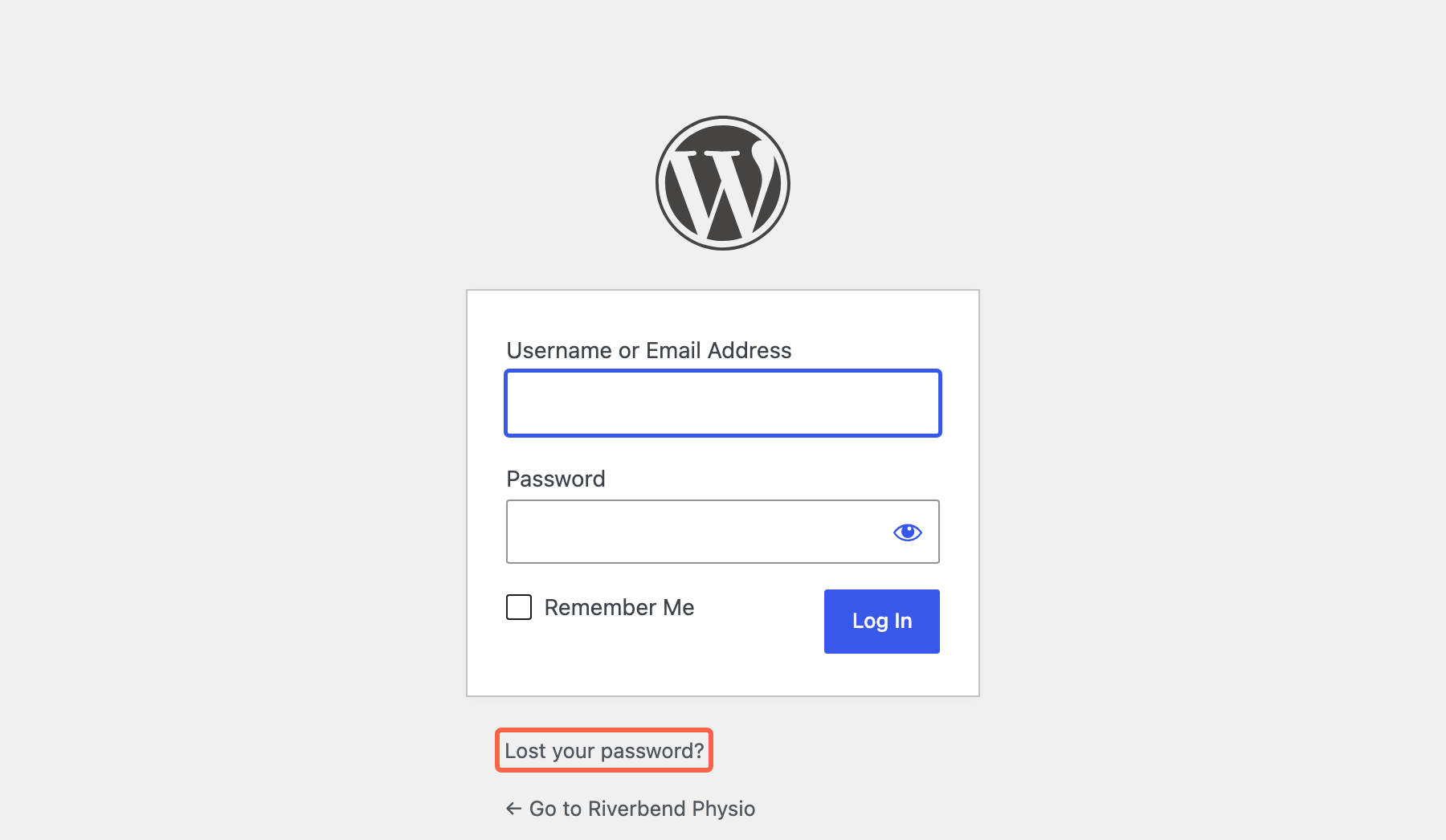
While they are looking, they can start a reset themselves without needing you at all. On your login page they click Lost your password? underneath the login box, type in their username or the email address on the account, and click Get New Password. WordPress replies with “Check your email for the confirmation link, then visit the login page.”
That message is worth reading carefully, because it is not a promise. WordPress says the same thing whether the email went out or vanished. If your website cannot send email, this route fails in exactly the same silent way the welcome email did, which is why the rest of this guide exists.
Send them a password reset from the Users screen#
This is the quickest thing to try from your side, and it works whether or not the original welcome email ever arrived. It sends a fresh link and does not change their password, so nothing breaks if the first email does turn up later.
Go to Users and hover over their row. A row of small links appears under their username: Edit, Delete, View, Send password reset, and anything your plugins add. They are blue, apart from Delete, which is red. Click Send password reset. If you need to do this for several people at once, tick their boxes instead, choose Send password reset in the Bulk actions dropdown above the table, and click Apply.

WordPress returns to the Users list with a green “Password reset link sent.” notice at the top. Give it ten minutes or so, then check with them rather than assuming it landed.

Send yourself a test email to see whether your website can send at all#
Rather than sending your developer a third link into the void, find out whether the problem is their inbox or your website. The trick is to send a test to an address you control, so you get a definitive answer within a few minutes.
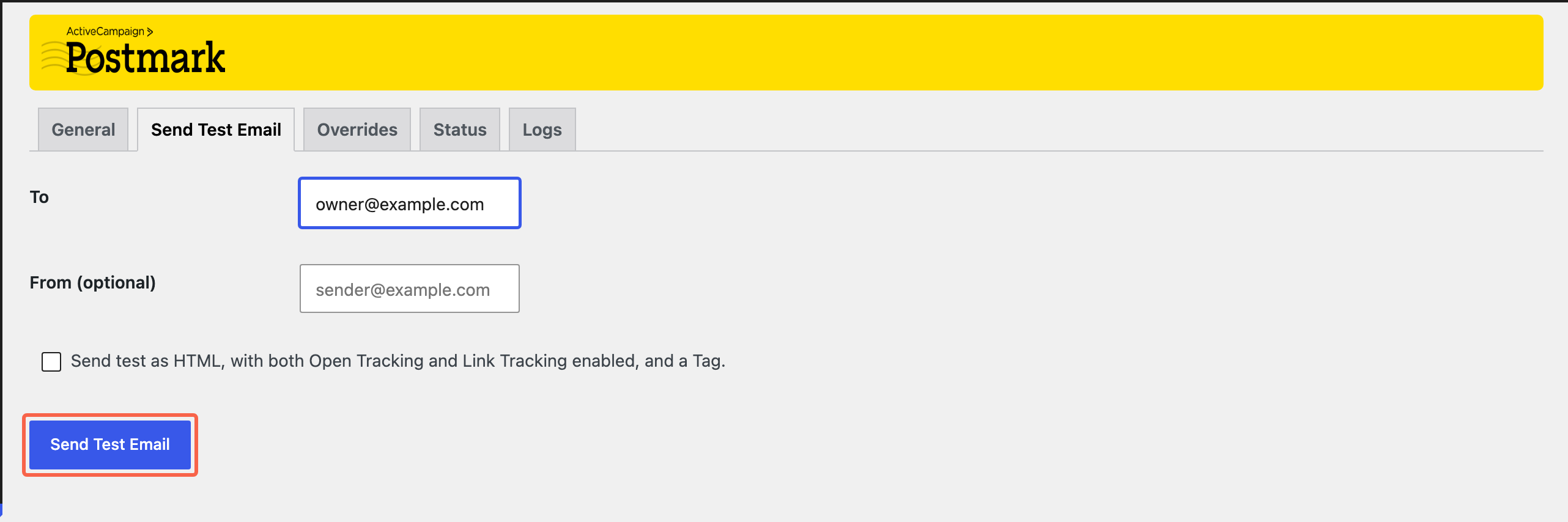
Steps 4 and 8 follow Postmark, which is the transactional email service we set up on the websites we look after, because its delivery reporting makes it obvious when a message did not land. Any decent transactional email service does the same job. If your website already sends its email through a different one, look for the same two things under its own name: a test send, and a record of what was sent. In the left menu hover Settings and click ActiveCampaign Postmark, then open the Send Test Email tab, put your own email address in the To box, and click Send Test Email.
Now wait, and judge it on your inbox rather than the screen. The words “Test sent” appear as soon as your web server accepts the message, which it does even when it has nowhere to send it. If nothing reaches you in five minutes, including your junk folder, your website cannot currently send email to anybody and no amount of resending will get your developer their link. Skip to the next step to get them in without email, and see the last step for the underlying fix.
Set a new password on their account yourself#
If your website cannot send email, this is the only route left that does not involve waiting for a fix. You set a password on their account, hand it over by some means other than email, and they change it as soon as they are in.
Go to Users, hover their row and click Edit. Scroll down to the heading Account Management. There are two controls there and they do different things. Send Reset Link, under Password Reset, emails them a link, which is the same thing you already tried and will fail the same way. The one you want is Set New Password, under New Password. Click it.

WordPress fills the box with a long random password and shows it in plain text, with a green Strong bar underneath and Hide and Cancel buttons beside it. Leave what it generated alone. It is far better than anything you would invent, and because it is temporary you never need to remember it.

Save it, then get it to them without emailing it#
Scroll to the bottom of the profile and click the blue Update User button. Nothing has changed until you do, and their old password keeps working until you do.

Now the handover, which is the part worth slowing down for. In rough order of preference: send it through a password manager’s one-time share link, which expires after it is opened; or read it to them over the phone while they type it in and log in there and then; or send the password by one channel and tell them their username by another, so neither message is useful on its own. Their username is on the Users screen if they have forgotten it.
WordPress does email the person a short notice saying their password was changed. That notice never contains the password, it is only a heads-up, and on a website whose email is broken it will not arrive either. Do not wait for it and do not count it as having told them anything.
Ask them to change it as soon as they are in#
Until they do, two people know the password to an account on your website, and one of them wrote it down somewhere to read it out. This takes them under a minute and closes that off.
Send them this: “You are in. Please go to Users, then Profile, scroll to Account Management and click Set New Password, then Update Profile at the bottom. The password I gave you should not be used again.” On their own Profile screen there is also a Log Out Everywhere Else button, which is worth them using if they are not sure who else has been in.

Get the sending problem fixed so this does not happen again#
Everything above is a workaround. If your website cannot send email, the same thing will happen to the next person you add, and it is also quietly costing you every contact form enquiry, order confirmation and comment notification your website thinks it has sent.
Out of the box, WordPress hands its email to whatever the web server provides, and on a lot of hosting that is either switched off or so untrusted by Gmail and Outlook that the message is binned on arrival. Either way nothing comes back to tell WordPress, which is why it keeps reporting success.
The fix is the same in principle whatever you use: send your website’s email through a proper mail service, so it is authenticated as coming from your domain and you can see what happened to each message. What varies is which service, and that mostly comes down to what you already pay for. Three options cover almost everyone.
A dedicated sending service. This is what we usually set up. We reach for Postmark, but there is nothing magic about it and Mailgun, Brevo, SendGrid and Amazon SES all do the same job, so if you already have one of those, use it. You get the best delivery rates and a log of every message, which means that when somebody says they never received an email you can look it up instead of guessing. It needs an account and a couple of changes to your domain records, so it is usually a job for whoever looks after your website.
The Google Workspace or Gmail mailbox you already have. If your team already runs on Google, your website can send through that same mailbox, which makes this the quickest option for a lot of small websites. You turn on 2-Step Verification for the Google account, generate what Google calls an app password, and give your website that instead of the real password. Worth knowing before you choose it: the daily sending limit belongs to the Google account, not to your website, so your website and whoever uses that mailbox are sharing it. That is roughly 2,000 messages a day on Google Workspace and 500 on a free Gmail address.
The Microsoft 365 or Outlook mailbox you already have. Same idea, using your Microsoft mailbox. This one comes with a deadline, so read it before you commit to it: Microsoft is retiring the username and password style of connection that websites use. It behaves normally until the end of December 2026, at which point it is switched off by default on existing accounts, and it is not available at all on accounts created after that, with full removal to follow. It works today and it will keep working if somebody turns it back on, but if you are choosing something fresh right now, choose one of the other two.
Whichever you pick, WordPress needs a small plugin to do the connecting, because it has no setting of its own for this. Any of the well known mail plugins will do it, including one supplied by your chosen service, and the shape of the job is the same every time: choose the service, paste in the details it gives you, then send a test message from the plugin and confirm it actually turns up.
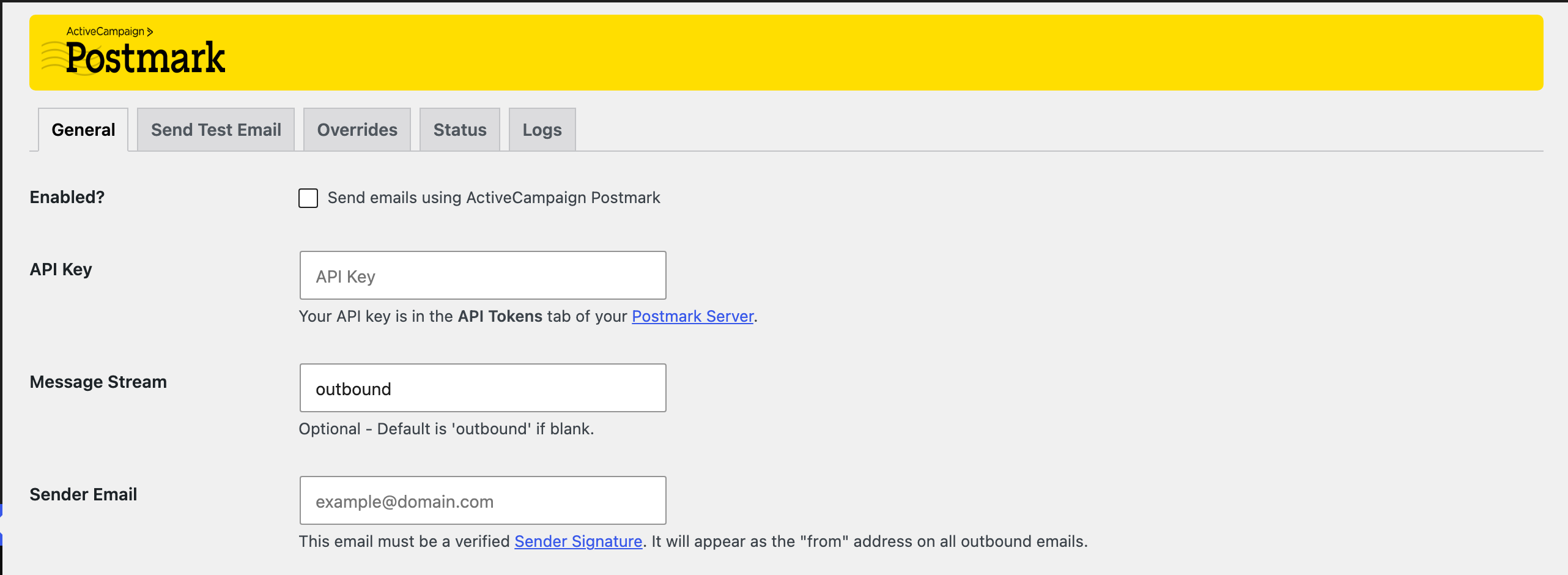
If your website already has a mail plugin, it is worth checking it is actually finished rather than just installed. Below is what half-done looks like on one of them: the plugin is there, but the Enabled box is unticked and the API key is empty, so email is still going out the unreliable way. Different plugins put these in different places, but they all have an on switch and somewhere to put the credentials, and both need to be filled in.
If you would rather email delivery, updates, backups and security were somebody else’s problem, that is what our managed WordPress hosting and maintenance covers.
Tested on WordPress 7.0.3 with Rank Math 1.0.275, Wordfence 8.2.2, Site Kit 1.184.0, Postmark 1.20.0, 8 Aug 2026
Rather not do it yourself?
We can take this off your plate
If you would rather someone else handled the fiddly bits, that is what we are here for. Tell us what you are trying to sort out and we will point you in the right direction.
Let us give you a handWritten by