Why you cannot see your changes on your website, and how to clear the cache
Prerequisites
- WP Rocket
Overview
If you have edited a page and your website still shows the old version, your work is almost certainly not lost and your website is almost certainly not broken. Something between you and that page is holding an older copy of it: your own browser, a caching plugin on your website, a cache your host runs of its own, or Cloudflare sitting in front of everything. This guide works through those layers in the order worth trying, starting with the one that takes about five seconds. It then covers the cases where nothing is caching at all, because the real cause is a change saved as a draft, a different page from the one you are looking at, or a staging copy of your website. Most of it you can do yourself in under ten minutes. We use WP Rocket for caching on the sites we look after, so that is what the screenshots show, but if your website uses a different caching plugin the same option will be in there under a slightly different name.
Reload the page properly before you do anything else#
This rules out the layer closest to you, and it takes about five seconds. Your browser keeps its own copy of the pages, images and stylesheets it has already downloaded, so that your website loads faster the second time you visit it. Immediately after you change something, that saved copy is the thing standing between you and your own edit.
An ordinary refresh often reuses that saved copy. A hard reload throws it away and fetches the page again. On a Mac, hold Shift and press the reload button, or press Command, Shift and R together. On Windows, press Control and F5 together, or Control, Shift and R. Do this on the page you edited, not on your dashboard.
The important thing to understand about this layer is that it is yours alone. Your browser’s saved copy affects nobody else, which is why a page can look wrong on your laptop and perfectly fine on your phone. If someone tells you the website looks fine to them, that is useful information rather than a reason to doubt yourself.
Open the same page in a private window#
This is the step that splits the problem in two, and it is worth doing before you clear anything. A private window, sometimes called incognito, does not use your saved copies and is not logged in to your website. It shows you roughly what a member of the public sees.
Open a private window, paste in the address of the page you edited, and compare. If the private window shows your change and your normal window does not, it was only ever your own browser and step 1 has already fixed it. If the private window shows the old version too, something is holding an old copy for everyone, and step 3 is where you go next.
There is a reason this catches people out. Caching plugins usually do not serve the saved copy to anyone who is logged in to the website, on the basis that you need to see your own work. So the person who made the change is often the only person seeing it. Below, the same page is shown twice: once as a logged-out visitor sees it, with a newly added Fees page missing from the menu, and once as the logged-in editor sees it, with Fees where it should be.


Clear the caching plugin from the bar at the top#
This clears the copy your website is handing to everyone else. We use WP Rocket for caching on the sites we look after, mostly because clearing it is a single click from the front of the website rather than a trip into settings. Plenty of caching plugins do the same job, and if your website has a different one the option will be in there under a name like Purge Cache or Delete Cache.
While you are logged in, go to the page that is showing the old version. Along the top of the screen there is a black bar. Hover over WP Rocket in it and a short menu drops down. Click Clear and Preload Cache. It clears the saved copies of every page and then quietly rebuilds them, which is why it says preload as well as clear.
Worth saying plainly, because it stops people clicking it: this does not delete anything on your website. No page, no image and no setting is removed. It throws away temporary copies that get rebuilt within seconds. The only side effect is that the next few visitors wait a fraction longer while those copies are made again.

Done from the front of the website, this gives you no confirmation at all. The page reloads and that is all. Done from inside your dashboard, the same menu is there and you get a green bar reading “WP Rocket: Cache cleared” with the time. If you want to be sure it worked, do it from your dashboard, then go back and hard reload the page.
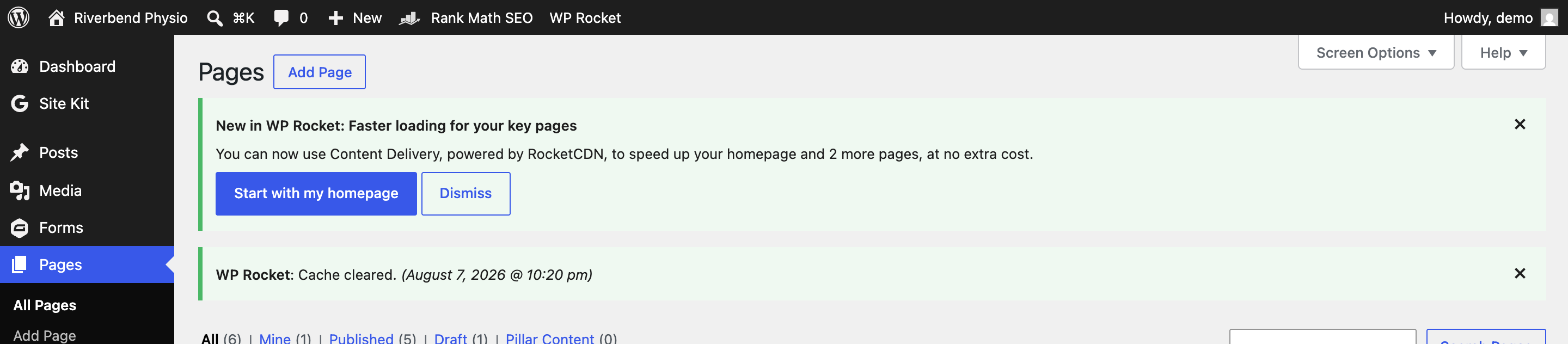
Clear one page instead of the whole website#
Once you know the trick above, this is the version to reach for day to day. Clearing everything is safe, but on a large website it makes the whole thing rebuild when only one page was wrong.
Stay on the page that is showing the old version, open the same WP Rocket menu in the black bar, and click Purge this URL instead. That clears the saved copy of the page you are looking at and nothing else. This option only appears when you are on the website itself, not when you are in the dashboard, because it needs to know which page you mean. There is a third route if you prefer working from lists: on Pages in your dashboard, hovering a row gives you a Clear this cache link alongside Edit and Trash.

One thing that surprises people: editing a page in WordPress and saving it already clears that page’s cached copy on its own. So if you changed the words on a page and are looking at that same page, the caching plugin is usually not your problem, and you should read steps 7 and 8 before you go any further. Where caching does bite is when you change something that appears across the whole website, such as adding a page to the menu, editing the footer, or changing your opening hours in a header. Those changes do not clear the saved copies of every other page, which is exactly what the screenshots in step 2 are showing.
Clear your host’s own cache as well as the plugin’s#
Most hosts run a second cache on the server itself, above WordPress. Your caching plugin cannot see it or clear it, so clearing the plugin leaves the server still handing out the old copy. If you have cleared the plugin, hard reloaded, and a private window still shows the old page, this is almost always why.
You can usually clear it yourself. Nearly every hosting platform has a cache of its own and a way to clear it: cPanel, Plesk, SpinupWP, RunCloud, WP Engine and Kinsta all do. The wording differs, the button is always there.
Look in two places. Most of them add a second item to the same black bar you used a moment ago, separate from your caching plugin’s one, so a website running both will show two cache menus up there and you need each of them. Read along the bar for your host’s name or the word cache, and take its clear-everything option. If it is not in the bar, it will be in your hosting control panel on the screen for that website, usually under a heading like Caching.
If you can find neither, ask your host, because it is the one layer you cannot check for yourself. Send them:
“I have updated a page on our website and cleared the caching plugin, but the old version is still showing to logged-out visitors. Do you run a server-side cache as well, and if so could you please clear it, or tell me where I clear it myself?”
Only if you use Cloudflare: clear that too#
Plenty of websites do not use Cloudflare at all, so this step may not be yours. The quickest way to find out is to log in at dash.cloudflare.com and look for your domain in the list. If it is not there, skip to the next step. If you have no Cloudflare login and nobody has ever mentioned it to you, that is also a fair sign it does not apply, and the note above tells you who to ask.
If your domain is there, Cloudflare is holding its own copies of your pages on servers around the world, and it can keep handing out the old version long after everything inside WordPress is clear. Open your domain, go to Caching and then Configuration, and use Custom Purge. Paste in the full web address of the page that is wrong and click Purge. It takes effect straight away.
There is a Purge Everything button next to it. Leave it alone unless the whole website is wrong, because it sends every visitor back to your own server at once and the website runs slower until the copies are rebuilt.
One thing catches people out here: clear WordPress first and Cloudflare second. The other way round, Cloudflare goes back to your website for a fresh copy and finds the old page still sitting there, so you end up exactly where you started.
Check the change was published rather than saved as a draft#
If you have cleared everything above and the page has still not changed, stop clearing caches. Repeating it will not help, and at this point the far more likely explanation is that the change was never made live in the first place.
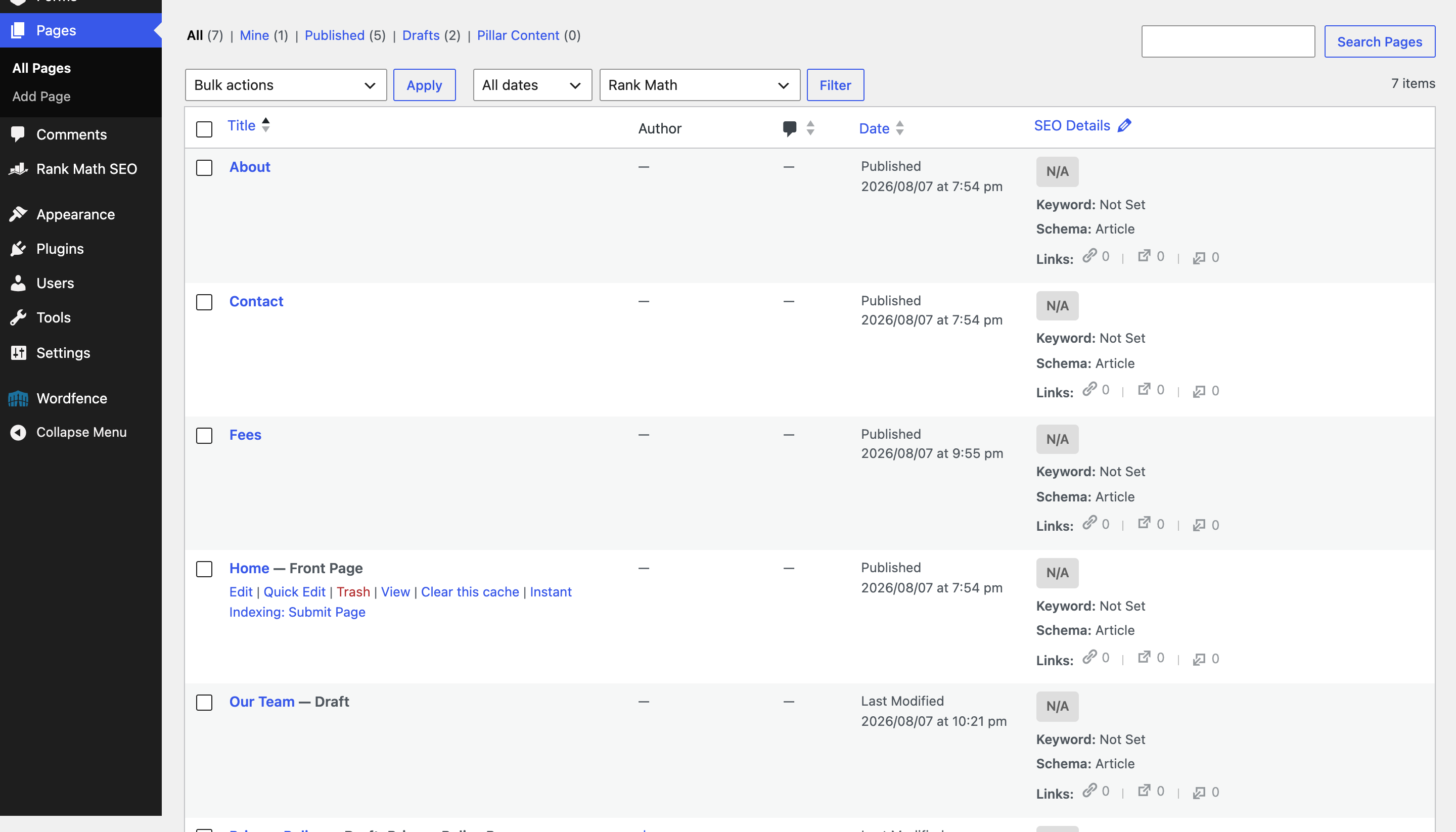
Go to Pages in the left menu of your dashboard and read the list. A page that has never gone live is labelled with the word Draft next to its title, and the links above the table count them, so a Drafts number of anything other than zero is worth a look. A draft is not visible to the public at all, so this shows up as a page that will not load rather than a page showing old content.
Open the page and look at the top right corner. If the button there is a blue Publish, this page has never been live, and clicking it is the whole fix. If it says Save instead, the page is already published, and you can click Save anyway if there is any doubt your last edit went in, because on an already published page it does no harm.

Check you are looking at the page, and the website, you actually edited#
This one feels too obvious to check and it is behind a surprising number of these. Websites accumulate near-duplicate pages, and it is entirely possible to spend twenty minutes editing Services while looking at Our Services in another tab.
With the page open in the editor, open the Page tab on the right hand side. Two rows there settle it. Status tells you whether the page is Published or still a Draft. Slug is the last part of its web address. Compare that slug against the address showing in the browser tab you have been staring at. If they do not match, you have been editing one page and looking at another, and there is nothing wrong with your website at all.
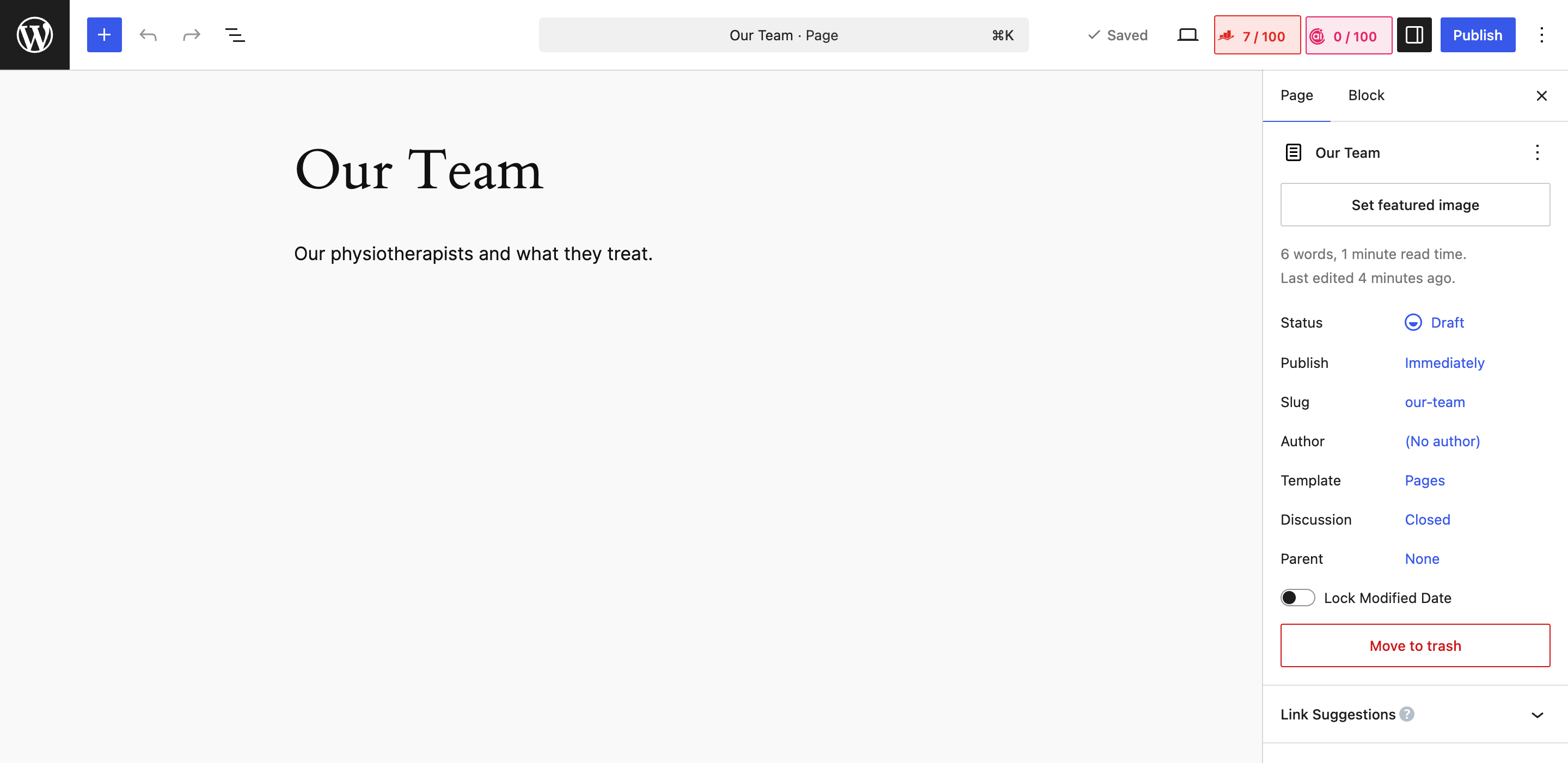
Then read the whole web address, not only the end of it. If your website has a staging copy, it will sit on an address that looks almost right but has an extra word in it, something like staging.yourdomain.co.nz or yourdomain.staging-host.com. Editing on staging and checking on the live website, or the other way round, produces exactly the symptom this guide describes, and no amount of cache clearing will resolve it. Bookmarks and old browser tabs are the usual way people end up on the wrong one without noticing.
If your website is on a plan with us, clearing these caches is something you can hand over rather than work through, along with updates, backups and security. That is what our WordPress care plan covers.
Tested on WordPress 7.0.3 with WP Rocket 3.23.1.1, Rank Math 1.0.275, Wordfence 8.2.2, 8 Sep 2026
Rather not do it yourself?
We can take this off your plate
If you would rather someone else handled the fiddly bits, that is what we are here for. Tell us what you are trying to sort out and we will point you in the right direction.
Let us give you a handWritten by