How to change where your contact form enquiries are emailed
Prerequisites
- Gravity Forms
Overview
If enquiries have stopped arriving, the first thing to check is not the form. It is who the form is emailing. That address is usually the one that was correct on the day the website was built, so it is often somebody who has since left, or an inbox nobody opens any more. The form keeps working, the enquiries keep arriving, and nobody sees them.
It is set on each form rather than in one site-wide setting, so changing it in one place does not change it everywhere, and that holds for any form you have: a quote request, a booking enquiry, a newsletter sign-up. The screenshots follow Gravity Forms, which is what we install, but any form plugin works the same way. You will need an Administrator account.
Open your form’s settings#
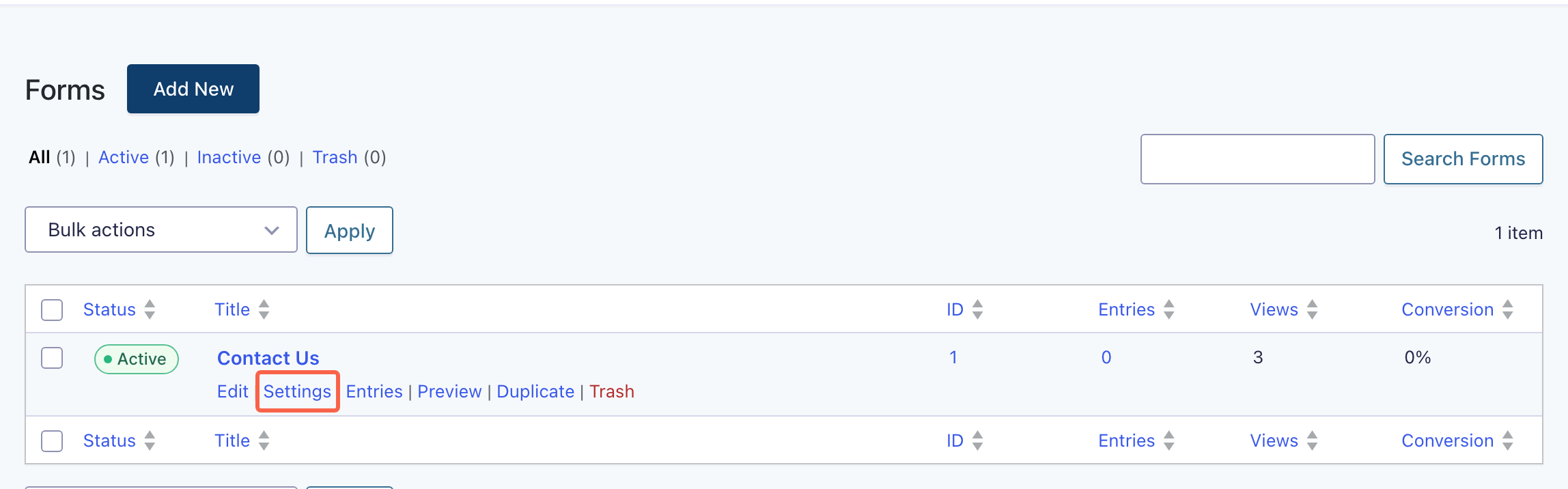
Log in to your dashboard, usually your domain followed by /wp-admin, and click Forms in the left menu. You get a list of every form on your website with the number of entries each one has collected, which is a quick way to tell which form people are actually using. Find the one behind your Contact page, normally called something like Contact Us or Enquiry.
Hover over its name and a row of links appears underneath it: Edit, Settings, Entries, Preview, Duplicate and Trash. Click Settings. This is the step people spend the longest on, because there is also a Forms then Settings screen for the plugin as a whole, and the recipient address is not in it. Every form carries its own notification settings, so you have to come in through the form.
Open the Notifications tab#
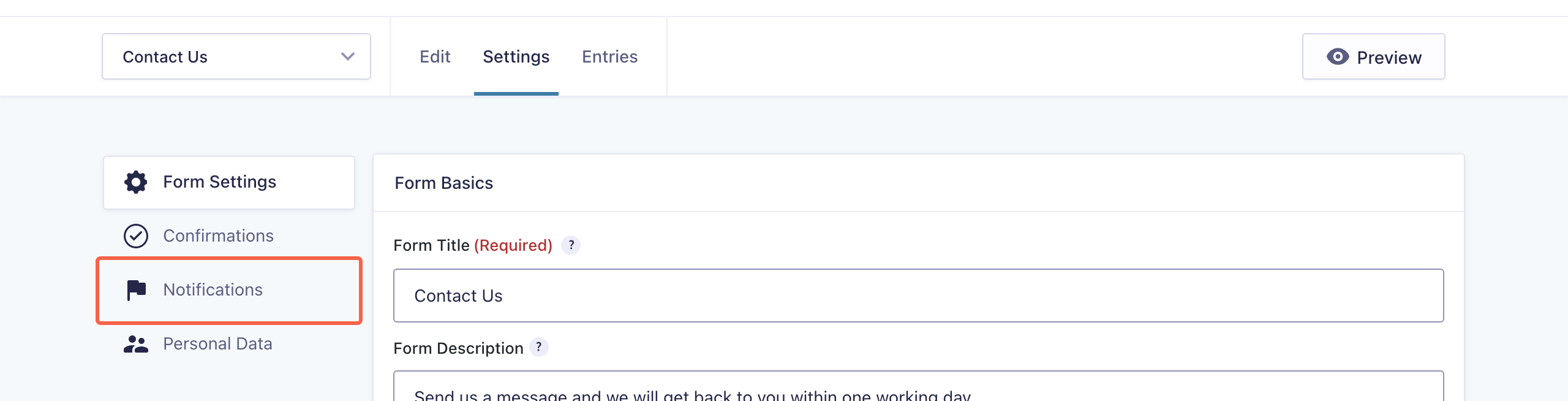
The screen opens on Form Settings, which covers the form’s title, its button and its layout. None of that is what you want. Down the left of the panel is a second, narrower menu with four items: Form Settings, Confirmations, Notifications and Personal Data. Click Notifications.
Confirmations and Notifications sit next to each other and get mixed up constantly, which costs people a lot of time. A Confirmation is the thank-you message the person filling in the form sees on screen afterwards. A Notification is the email that comes to you. If you are chasing missing enquiries, Notifications is the one.
Open the notification that sends your enquiries#
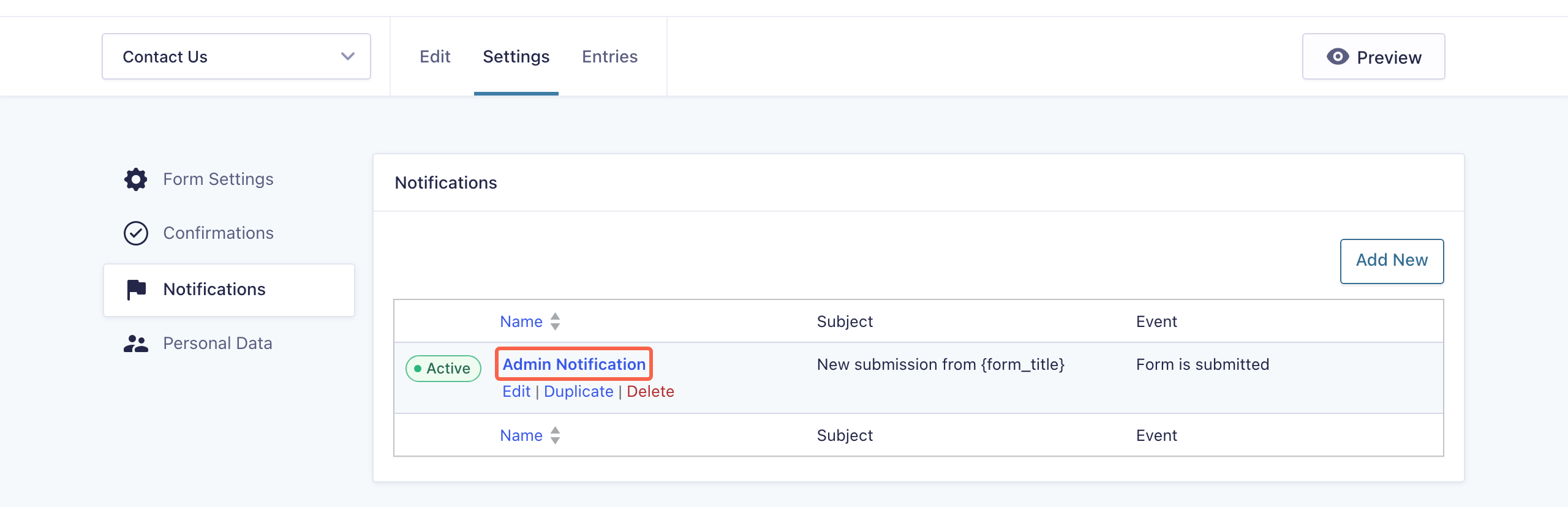
You now see a table of every notification this form sends, with columns for Name, Subject and Event. A form that has never been touched has one, called Admin Notification, with its Event reading Form is submitted. Click its name to open it.
If your form has several, read the Event column before choosing. Only the ones set to Form is submitted go out when somebody sends an enquiry. Check the green Active label on the left of the row as well, because a notification that has been switched off sends nothing at all, and on its own that is sometimes the whole reason the enquiries stopped.
Change the Send To address#
Scroll down to Send To Email. This one field is the answer to the whole question: it holds whoever currently receives your enquiries. On a website where they have gone quiet, this is usually where you find the address of somebody who left two years ago. Clear it and type the address you want instead.
You can send the same enquiry to more than one person. Put every address in this same field, separated by commas, like [email protected], [email protected]. There is no separate box for the second recipient and no need to duplicate the notification. Spaces after the commas are fine.
Where you can, use a shared address such as enquiries@ or reception@ rather than one person’s personal address. It is the whole fix for the problem this guide exists to solve, because a shared inbox survives somebody leaving and a personal one does not. If the field currently contains {admin_email} rather than an address, that is a placeholder meaning “whatever address is set under Settings then General”. It works, but it is worth replacing with a real address so that anyone reading this screen later can see where the enquiries go.

Decide whether to send to an address from the form instead#
Immediately above that field are three options labelled Enter Email, Select a Field and Configure Routing. Enter Email is the one you have been using, and for an ordinary contact form it is the right answer. The other two are worth understanding so you can rule them out quickly, or reach for them when they genuinely help.
Select a Field sends the notification to an address somebody typed into the form. On a contact form that would email the enquiry to the customer rather than to you, which is not what you want. It is there for forms where the person filling it in nominates who should receive it, such as a refer-a-friend form or a “send this quote to my manager” form.
Configure Routing is the useful one for a growing business. It sends to different addresses depending on what the person chose. If your form has a dropdown asking which service they need, routing lets you say “send to accounts@ if Enquiry type is Billing” and “send to bookings@ if Enquiry type is Appointment”, each as its own rule. It only works off a field that offers choices, such as a dropdown, radio buttons or a tick list, so if your form is only name, email and message there is nothing for it to route on and Enter Email is your answer.

Set Reply To so replies go to the customer#
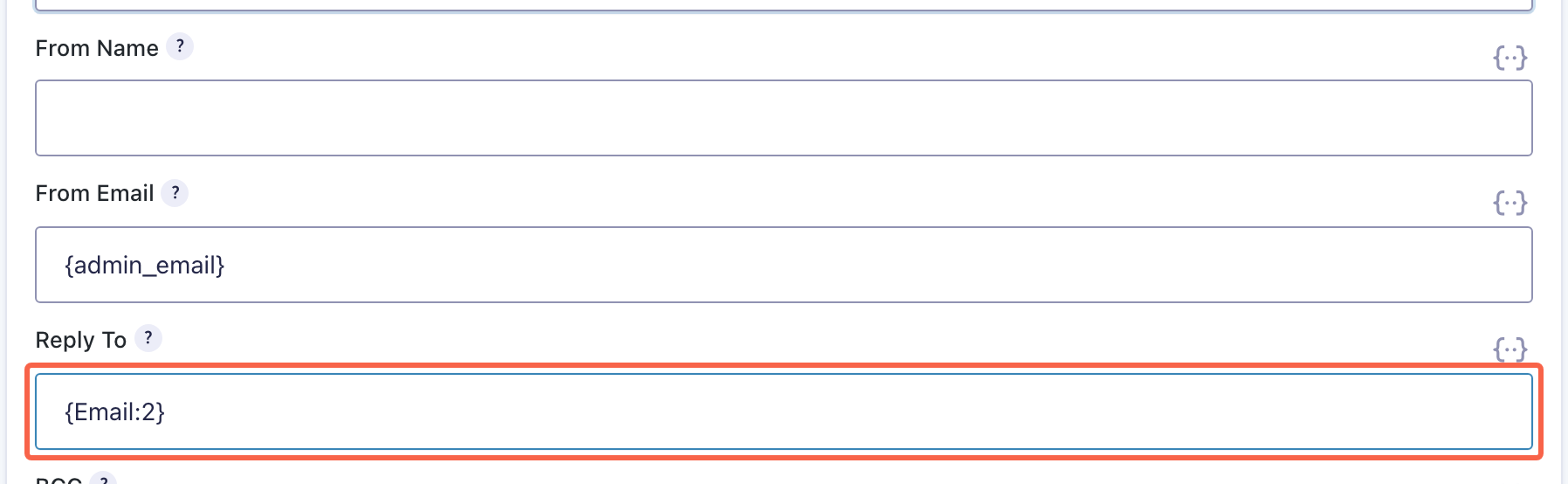
Keep scrolling and you reach From Name, From Email and Reply To. This is the part that quietly wastes people’s time every week: you open an enquiry, hit Reply, write a thoughtful answer, and it goes to your own website instead of to the person who asked.
Leave From Email alone. It normally reads {admin_email} and it needs to stay as an address at your own domain. Putting the customer’s address in there feels like it would solve the reply problem and instead causes a much bigger one, because mail providers reject messages that claim to come from a domain the sending server has no permission to use. That is one of the most common reasons form emails vanish altogether.
Reply To is the field to change. Click the small {..} icon at the right-hand end of it, pick your form’s Email field from the list that drops down, and it inserts a placeholder like {Email:2}. The number is that field’s ID on your form, so yours may be different, and it is safer to insert it from that list than to type it. From then on, replying to an enquiry goes to whoever sent it.
Save the notification#
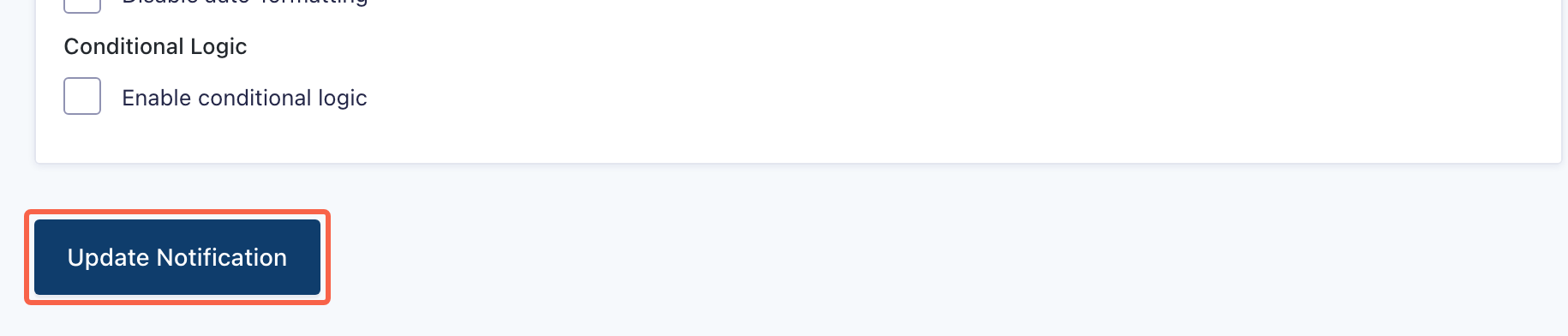
Scroll to the bottom of the panel, past Auto-formatting and Conditional Logic, and click the dark blue Update Notification button. Nothing you have typed takes effect until you do, and clicking one of the tabs above to go and check something loses it without warning.
If a required field was left empty you are told at the top of the screen and nothing is saved. Otherwise you land back on the list of notifications with the change in place.
Send a real test enquiry through your own website#
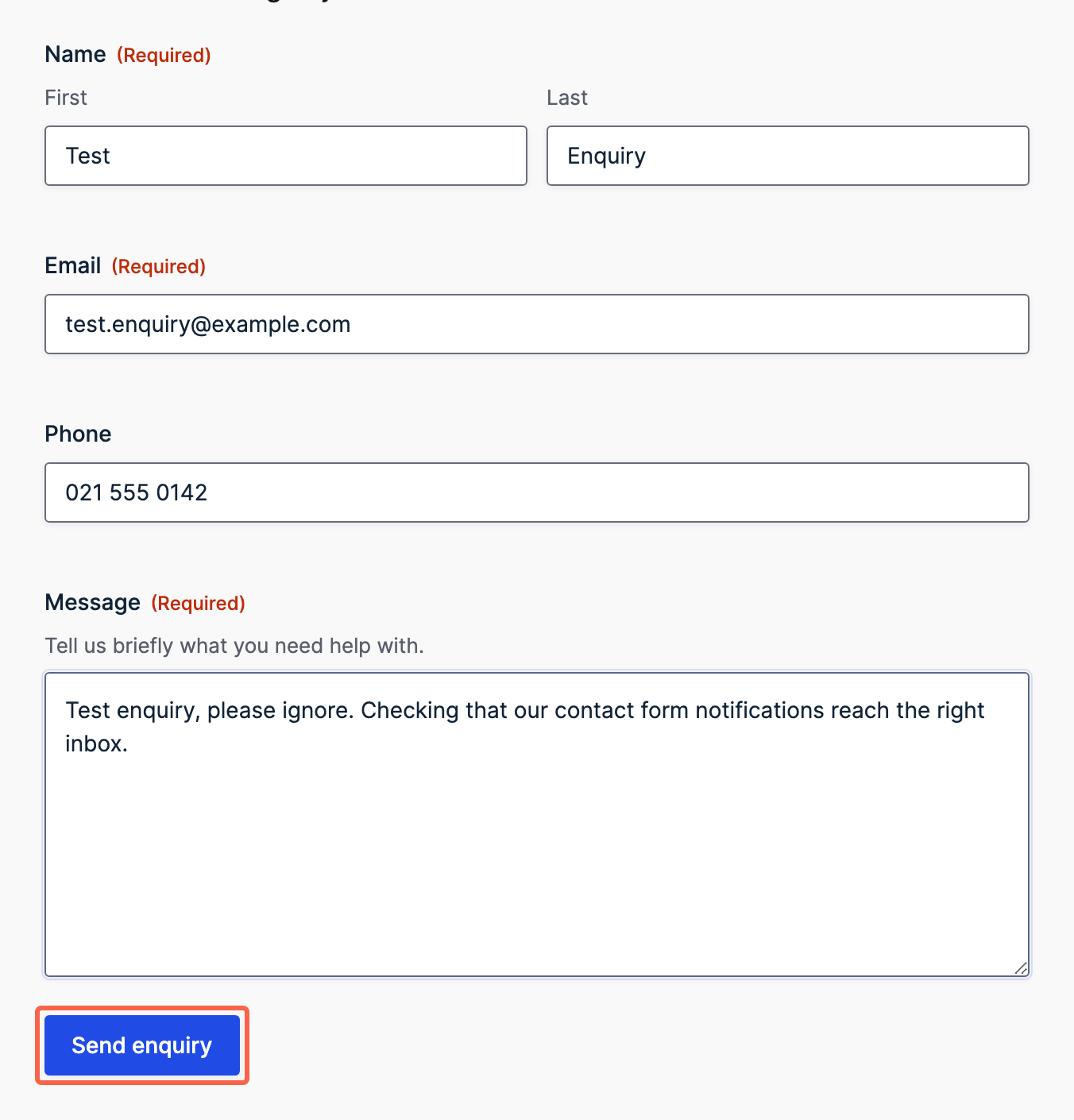
Open your own Contact page in a new tab, the way a customer would rather than through the dashboard, and fill the form in properly. Use an address you can actually open for the enquirer’s email, because the point of the test is to see what a reply does. Put something like “Test enquiry, please ignore” in the message so that whoever is watching the inbox knows what it is. Then click the submit button.
Two things catch people out at this point. Gravity Forms deliberately rejects addresses ending in @example.com and @domain.com on a live form and answers with “The email address entered is invalid”, so use a genuine address rather than a made-up one. And if your website caches its pages for speed, you may be looking at an old copy of the Contact page. Open it in a private or incognito window to be sure you are testing the current one.
Check the email actually arrived#
Open the inbox you set in step 4 and look for the message, checking the junk and spam folders as well, because a first message from a new sender often lands there. When you find it, hit Reply and look at who it is addressed to. It should be the person who filled in the form. That confirms both halves of what you changed in one action.
Now check the WordPress side too, because it tells you something the inbox cannot. Go to Forms, then Entries, and choose your form. Your test is listed there. Enquiries are recorded in WordPress whether or not the email goes out, which is genuinely reassuring: if a notification has been going nowhere for months, the enquiries themselves are still sitting in Entries waiting to be read.
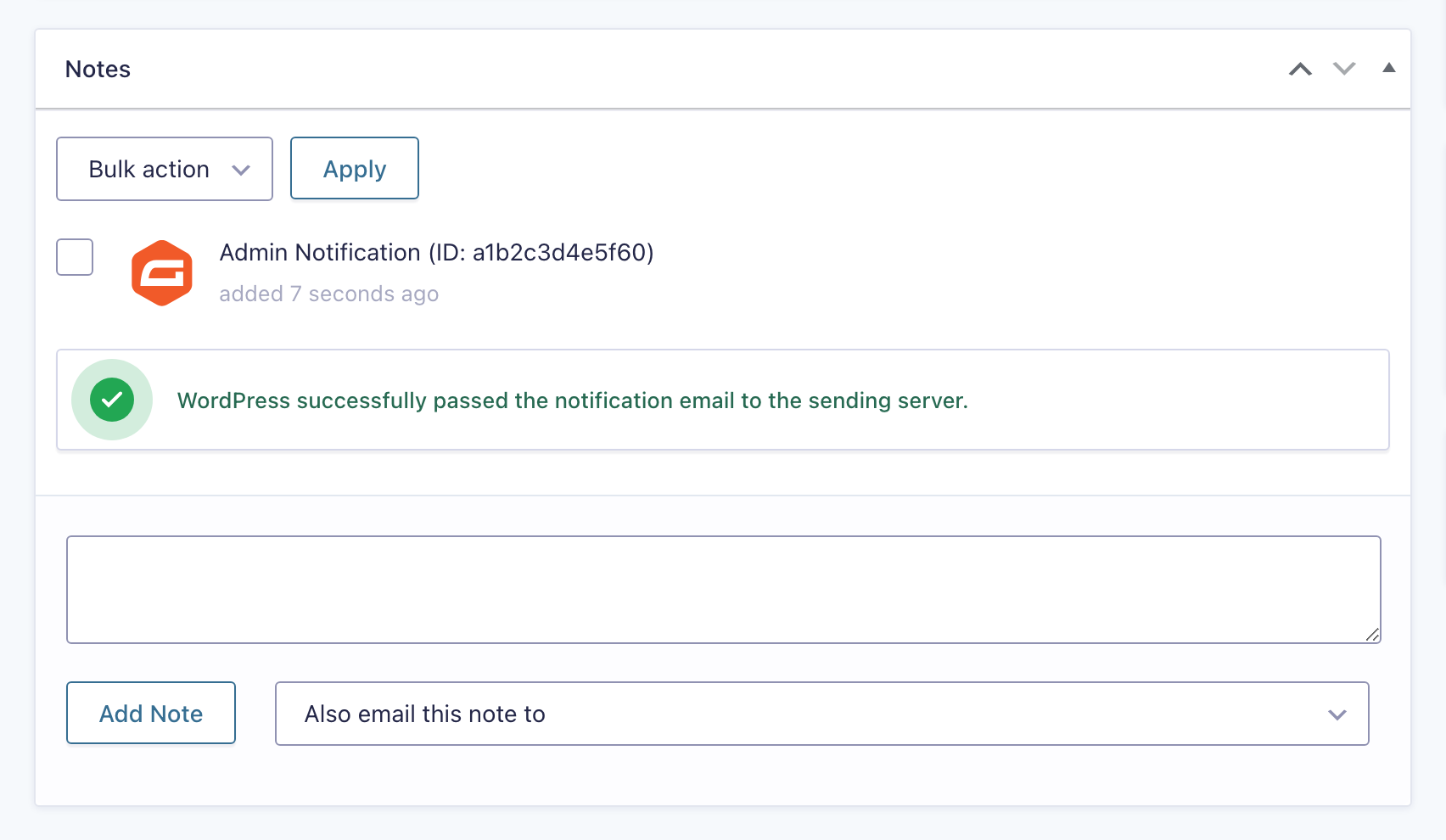
Open the entry and read the Notes panel at the bottom. Gravity Forms writes a line there for every notification it tried to send, and the wording repays attention. A green tick saying “WordPress successfully passed the notification email to the sending server” means the message was handed over. It does not mean anybody received it. That is the whole trap: this screen will look like a success on a website where no form email has been delivered in a year.
If your test never turns up, the problem is your website’s ability to send email at all, not this form, and no amount of changing the address will fix it. It is the same underlying fault covered in how to reset a WordPress password when the email never arrives. Once it is sorted, the Notifications panel on that same entry lets you resend the notification for an enquiry that was already recorded, so nothing has to be lost.
The lasting fix is to stop your website sending its own email and hand it to a service built for it. We use Postmark on the websites we look after, because it reports on every message so you can see whether an enquiry was delivered, opened or bounced instead of guessing. There are plenty of alternatives and any decent transactional email service does the same job. Whatever you use, it is worth doing once rather than rediscovering the problem the next time an enquiry goes missing.
If you would rather this sort of thing was watched for you, along with updates, backups and security, that is what our managed WordPress hosting and maintenance covers.
Tested on WordPress 7.0.3 with Gravity Forms 3.0.2, Rank Math 1.0.275, Wordfence 8.2.2, WP Rocket 3.23.1.1, 23 Aug 2026
Rather not do it yourself?
We can take this off your plate
If you would rather someone else handled the fiddly bits, that is what we are here for. Tell us what you are trying to sort out and we will point you in the right direction.
Let us give you a handWritten by