How to connect your website to Google Search Console and submit your sitemap
Prerequisites
- Google Search Console
Overview
To connect your website to Google Search Console, add it as a property at search.google.com/search-console, prove you own it by pasting Google’s HTML tag verification code into Rank Math’s Webmaster Tools settings, then submit your sitemap address in the Sitemaps report. If your WordPress website runs Rank Math, your sitemap is already being built for you and sits at yourdomain.co.nz/sitemap_index.xml. You will need an Administrator account on your WordPress website, because Rank Math’s settings screens are hidden from Editors. By the end you will have a verified property, a submitted sitemap, and Google reporting back on which of your pages it has found and indexed.
Google Search Console is the free report card Google gives every website owner. It tells you which of your pages Google has found, which ones it has quietly skipped, and what people typed to end up on your website. None of that shows up until you have connected your website to it and told Google where your sitemap is.
This guide assumes your website runs WordPress with the Rank Math SEO plugin installed and active, because Rank Math handles both halves of the job for you: it builds the sitemap, and it gives you somewhere to paste Google’s verification code without touching any theme files. If you are on Yoast instead, the settings sit in different places but the Search Console side is identical.
Find your sitemap address in Rank Math#
A sitemap is a list of every page on your website in a format Google reads quickly. You need its address before you go anywhere near Search Console, so start here.
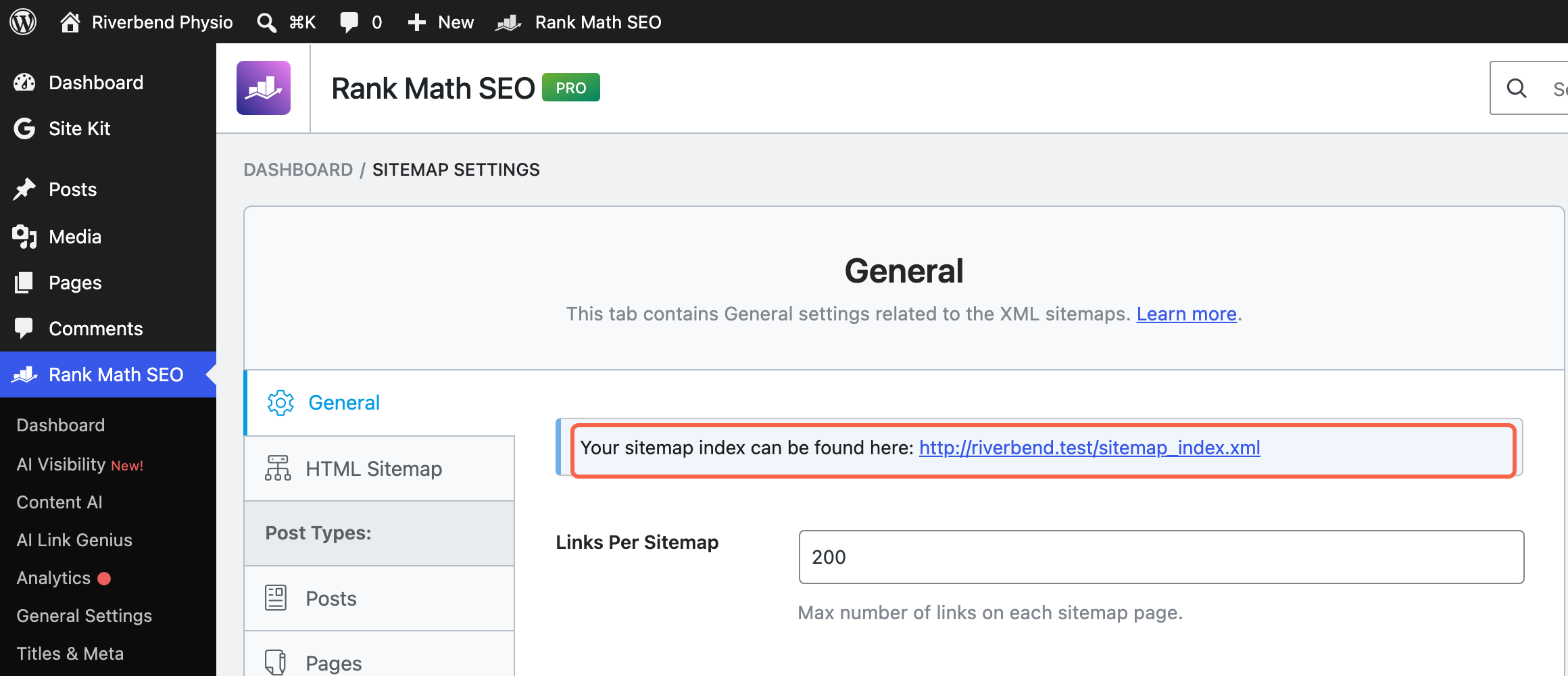
Log in to your WordPress admin. In the left menu, click Rank Math SEO, then Sitemap Settings. At the top of the General tab you will see a line reading “Your sitemap index can be found here”, followed by a link. That link is your sitemap address, and it will usually end in /sitemap_index.xml. Copy it somewhere you can get at it in a minute.
If you cannot see Sitemap Settings in the Rank Math menu, there are two reasons that happens. If you can see the rest of the Rank Math menu but not Sitemap Settings, the sitemap module has been switched off: go to Rank Math SEO then Dashboard, find Sitemap in the list of modules, and turn it on. If there is no Rank Math SEO item in your left menu at all, your WordPress account is an Editor rather than an Administrator, which is covered further down.
Check your sitemap opens in a browser#
Google will refuse a sitemap it cannot fetch, and the error it gives you afterwards is vague. Checking now saves you guessing later.
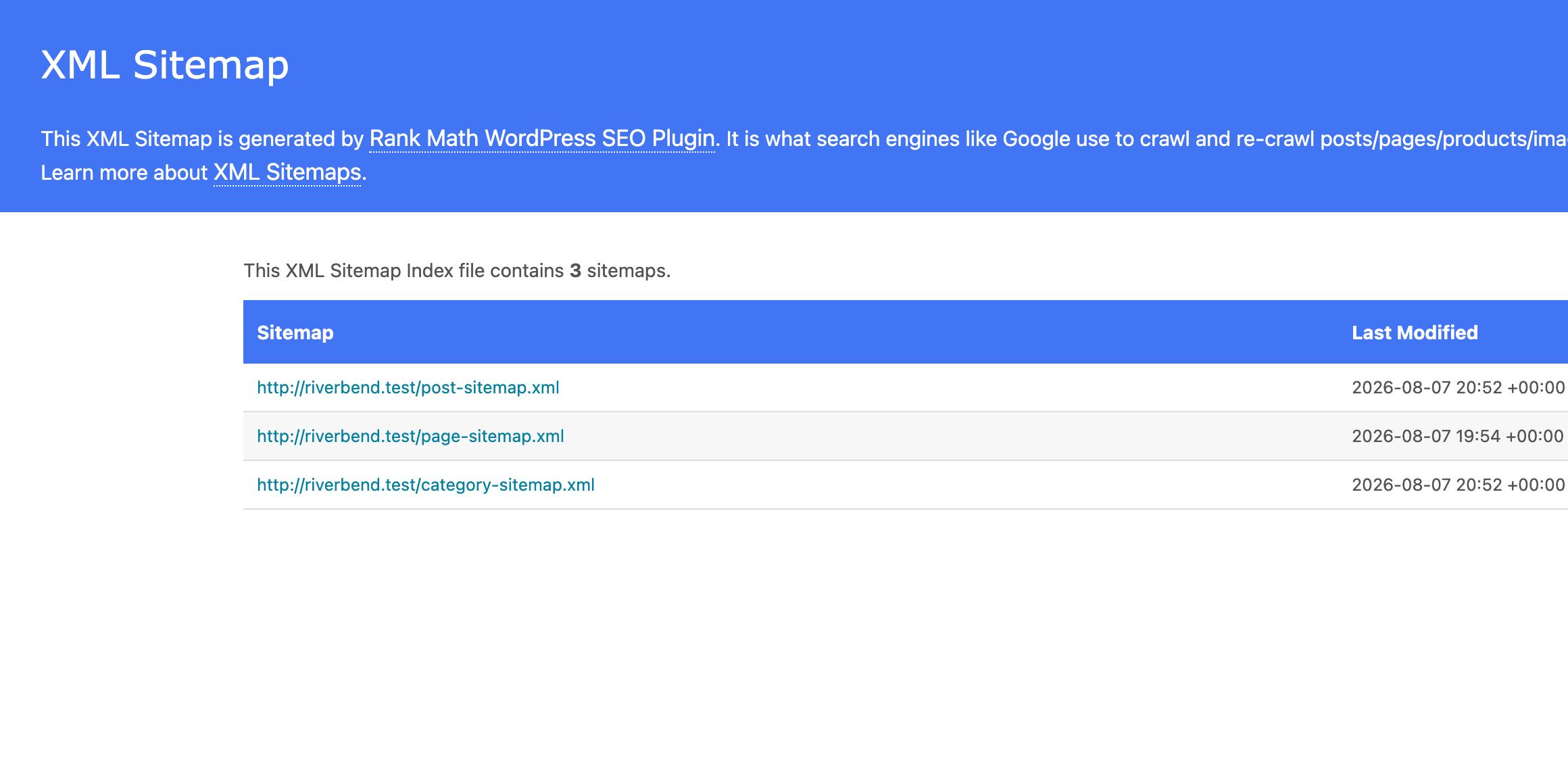
Click the link you just copied. You should get a page headed “XML Sitemap” listing several smaller sitemaps, usually one each for your posts, pages and categories. It looks like a spreadsheet rather than a normal page, and that is correct.
This is where it most often goes wrong. If you get a 404 page not found, go to Settings then Permalinks in the WordPress left menu and click Save Changes without changing anything. That rebuilds the address rules and fixes the sitemap in most cases. Try the link again.
Add your website to Search Console#
Now you tell Google which website is yours. Go to search.google.com/search-console and sign in with the Google account you want to own this website’s data long term. Use a business account rather than a personal one if you have the choice, because whoever owns this account owns the reports.
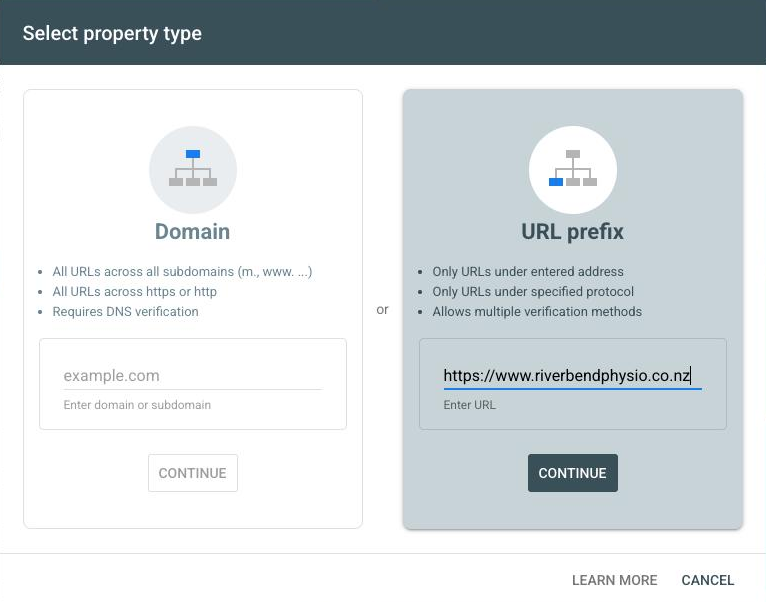
Open the property selector dropdown at the top left and choose to add a property. Google calls each website you track a “property”. You will then be asked what kind of property you are adding.
Choose the URL prefix option#
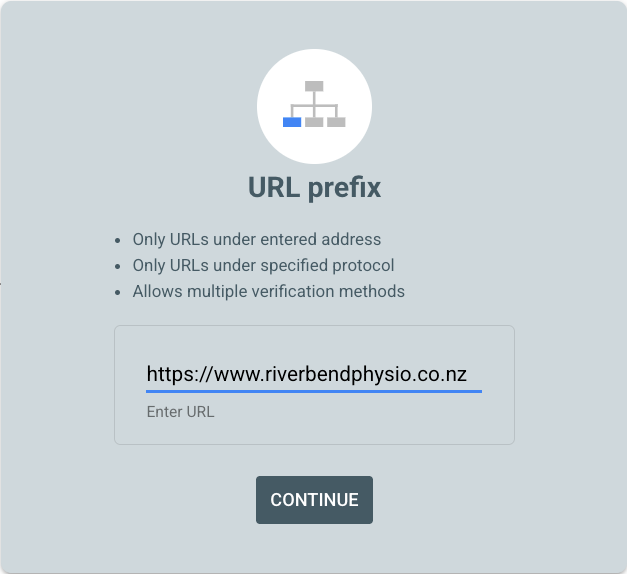
This is the decision that catches most people out, so it is worth a moment. Google offers two kinds of property. The Domain option covers your whole domain including every subdomain, but it can only be verified by adding a DNS record, which means logging in wherever your domain is registered. The URL prefix option covers one exact address, and it can be verified straight from WordPress.
Unless you already have your DNS login open in another tab, choose URL prefix. Type your website address exactly as it appears in your browser bar, including https:// and including www. if your website uses it. A property for https://www.yourdomain.co.nz will not report on https://yourdomain.co.nz, so this needs to match. Then confirm to move on.
Copy the HTML tag verification code#
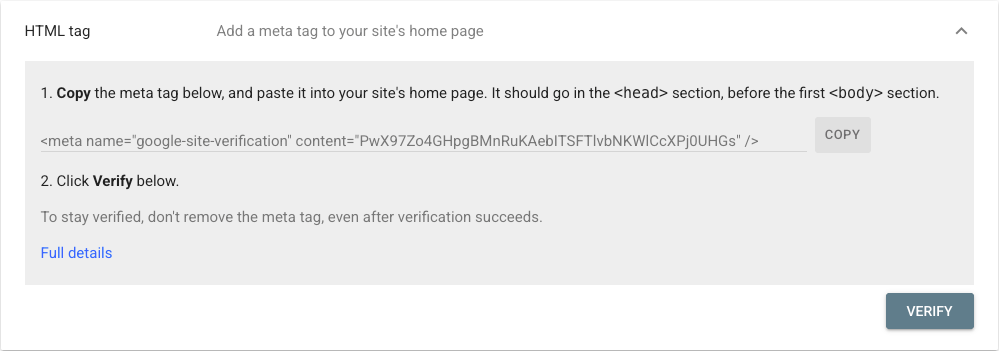
Google now needs proof you control the website rather than just knowing its address. It offers several ways to do that. The one that works without touching any files is HTML tag.
On the ownership verification screen, expand the HTML tag option. You will see a line of code that looks like <meta name="google-site-verification" content="a-long-string-of-characters" />. Copy the whole line. Leave this browser tab open, because you are coming back to it in two steps.
Paste the code into Rank Math#
Rank Math has a field built for exactly this, which saves you editing your theme’s header file and risking your website’s layout.
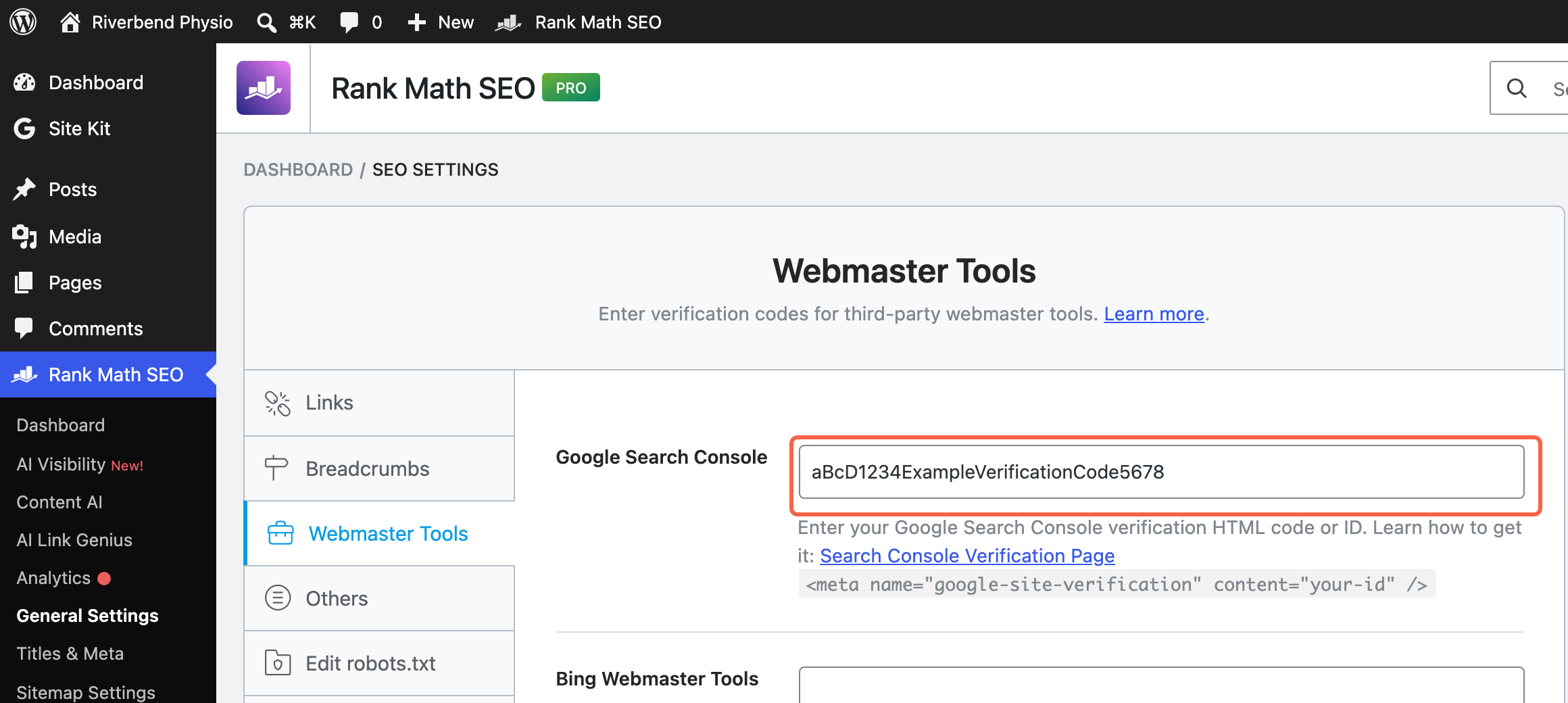
Back in a WordPress admin tab, go to Rank Math SEO, then General Settings, then the Webmaster Tools tab. Paste what you copied into the Google Search Console field at the top. Rank Math accepts either the whole meta tag or just the code inside the quote marks, so you do not need to trim anything. Click Save Changes at the bottom.
If your website uses caching, clear the cache now. A cached copy of your homepage will not contain the new tag, and Google will read the cached copy and tell you verification failed.
Verify your ownership in Search Console#
Go back to the Search Console tab you left open and click Verify. Google fetches your homepage, looks for the tag you just saved, and confirms the website is yours.
If it fails, the tag almost certainly is not on the live page yet. Clear your caching plugin again, wait a minute, and click Verify a second time. Do not remove the tag from Rank Math afterwards, even once verification succeeds, because Google rechecks it periodically and will unverify your property if it disappears.
When it works you get a green confirmation panel saying ownership is verified, with a button to go through to the property. That is the whole job done. If instead it tells you ownership was verified automatically by a domain name provider, that is not a mistake either: it means whoever manages your domain name has already connected it to Google at the DNS level, so Search Console recognised the website before it even looked for your tag.
Submit your sitemap#
Verification tells Google the website is yours. Submitting the sitemap tells Google what is on it, which is what actually gets your pages looked at.
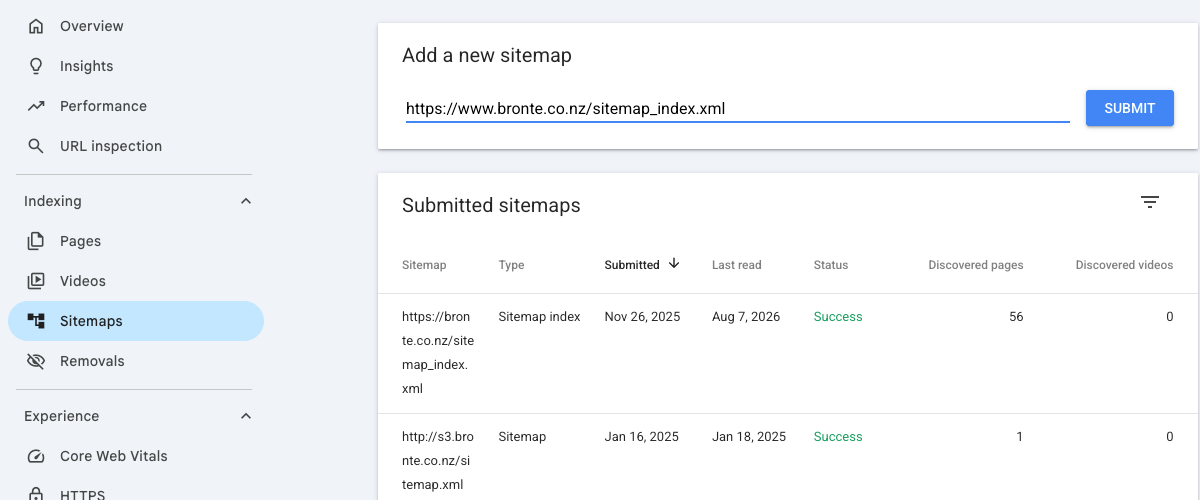
In the left menu of Search Console, in the indexing section, click Sitemaps. Paste the sitemap address you copied in step one into the box for adding a new sitemap, then click Submit. Paste the full address including https://, not just the /sitemap_index.xml part.
Check the sitemap status a few days later#
Google fetches a sitemap almost straight away, but crawling the pages inside it takes longer, and the reports need data before they show you anything. Google’s own guidance is that data begins to appear within a few days, and that crawling can take anywhere from a few days to a few weeks.
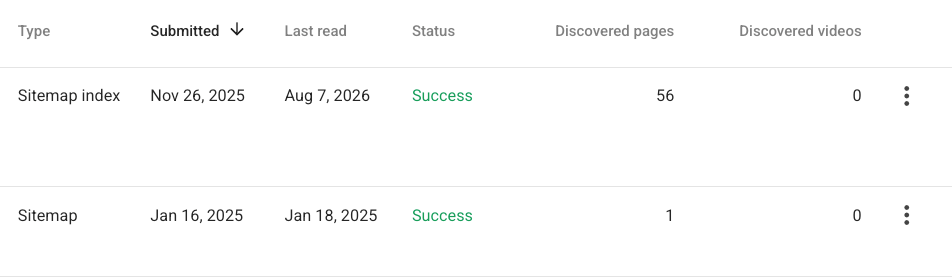
Come back to the Sitemaps report later that week. Your sitemap should show a status of Success and a count of discovered pages. Couldn’t fetch means Google could not reach the address, so recheck it opens in your own browser. Has errors means Google read the sitemap but tripped on something inside it, and clicking the row will tell you what.
One thing to expect: the discovered pages count will not match your page count exactly, and Google will not index every page it finds. Submitting a sitemap is a strong hint, not an instruction.
What to do with it from here#
Once data starts arriving, the two reports worth a monthly look are Performance, which shows what people searched to reach you, and Page indexing, which shows any pages Google chose not to index and why. Both are more useful after a couple of months of history than they are in week one, so resist reading too much into early numbers.
If Search Console starts flagging pages it will not index and the reasons do not make sense, that is usually a symptom of something structural rather than something you fix page by page. Our website health check goes through indexing, sitemaps and the rest of the technical side and tells you plainly what is worth fixing.
—If you would rather not set this up yourself, it is the sort of small job that comes out of the hours included in a WordPress care plan, rather than needing a quote of its own.
Tested on WordPress 7.0.3 with Rank Math 1.0.275 and Rank Math Pro 3.0.118, 8 Sep 2026
Rather not do it yourself?
We can take this off your plate
If you would rather someone else handled the fiddly bits, that is what we are here for. Tell us what you are trying to sort out and we will point you in the right direction.
Let us give you a handWritten by