How to check your website’s security headers and fix the gaps
Prerequisites
- Cloudflare
Overview
Security headers are instructions your website sends to a visitor’s browser telling it what the page is allowed to do, and most websites are missing at least half of them. By the end of this you will have scored your own website out of 100 using the checker on this page, know which of the gaps actually matter and which are cosmetic, and have the exact values to add for each one. The headers themselves are set on your web server or your CDN rather than anywhere in WordPress, so for most people this ends in a clear request to whoever looks after the hosting, and the wording for that is here too. The riskiest change, Content Security Policy, has a safe way to trial it before it can break anything.
Security headers are short instructions your website sends to a visitor’s browser before the page loads, telling it what it is and is not allowed to do while it is there. They cost nothing, they are invisible to your visitors, and most New Zealand websites are missing at least half of them.
This walks through checking yours, understanding the result, and getting the gaps filled without breaking anything on the way.
Check what your website sends today#
Before changing anything, find out where you are starting from. Put your website address in below and the checker reads the headers your website sends back, scores them out of 100, and lists what is missing.
Check your website’s security headers
Enter your address and we will read the headers your website sends back, score them out of 100, and tell you what to fix first. It is free, there is no sign-up, and nothing is stored.
It reads only the headers on your home page, which is the same thing a browser sees on a first visit. It does not log in, does not touch your files, and does not store your result. If your website sits behind a firewall that blocks unknown visitors, the check may not get through, and that is worth knowing in itself.
Read what the score is actually telling you#
The grade is a measure of how much of this free protection you have switched on. It is not a measure of whether your website has been hacked, and a low grade does not mean anything is wrong right now. Plenty of perfectly healthy websites score in the 40s because nobody ever set these up.
One number dominates the score. Content Security Policy is worth 25 of the 100 points on its own, because it is the only header that meaningfully limits what an injected script can do. If it is missing, you will not get above about 75 no matter what else you fix, and that is deliberate.
Work down the Fix these first list rather than through the full list in order. It is sorted by how much each gap actually exposes you, not by how much work each one is to add.
Find out where your headers are set#
Headers come from whatever answers the request first, so before anyone edits anything you need to know which layer that is on your website. There are three common places, and changing the wrong one produces no effect at all, or two conflicting values.
- Your web server. On the servers we run this is an nginx configuration file, and on a lot of shared hosting it is a file called .htaccess. This is the most reliable place, and it is where we put them.
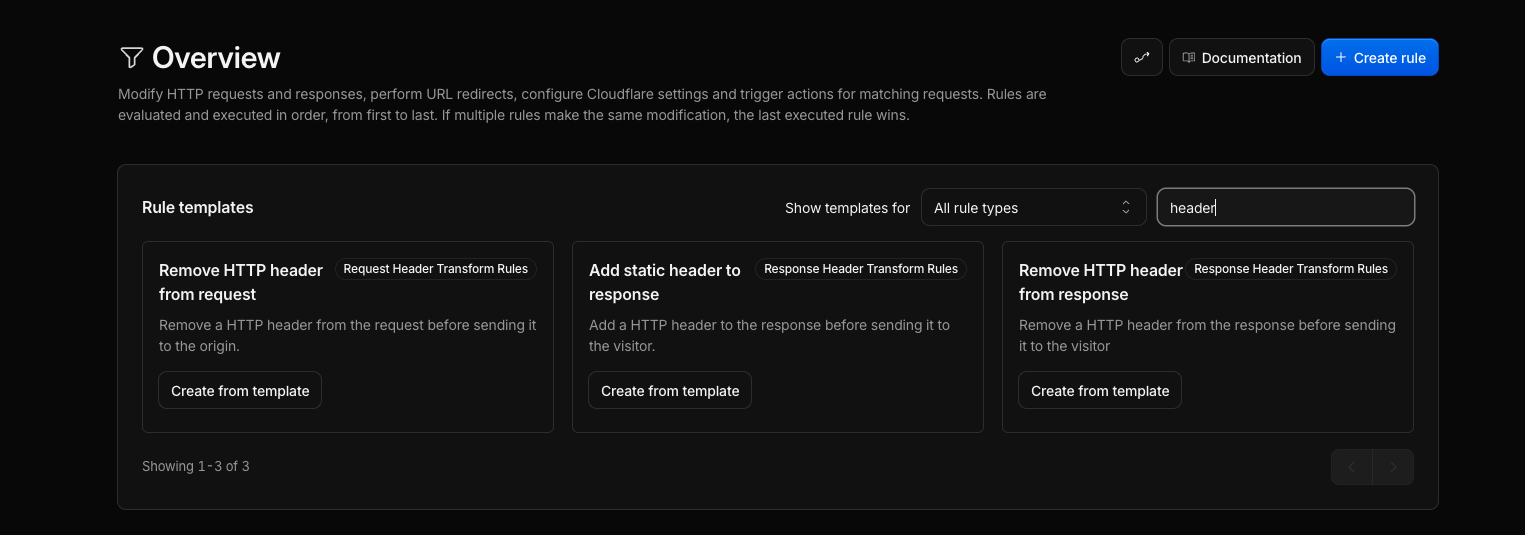
- A CDN or proxy in front of your website. If your website runs through Cloudflare, headers can be added there instead, without touching the server at all. Handy when you do not have server access, and it is the quickest route for most people. In the left menu it is under Rules, then Overview, and searching the rule templates for “header” brings up the response header ones.
- A plugin. Some security and performance plugins can add headers. It works, but it is the layer most likely to be turned off during a plugin update or a caching change, and it does not protect anything the plugin is not loaded for.
If your result already showed headers arriving, something is setting them and that is the layer to keep using. Adding the same header in a second place is the usual cause of a header appearing twice with two different values, at which point browsers pick one and it is rarely the one you meant.
Add the four headers that cannot break anything#
Start here, because these four change nothing a visitor can see and none of them can stop your website working. Getting them on takes the score up meaningfully and gets the nervous part out of the way.
X-Content-Type-Options: nosniff
Referrer-Policy: strict-origin-when-cross-origin
Permissions-Policy: camera=(), microphone=(), geolocation=(), payment=(), usb=()
Cross-Origin-Opener-Policy: same-origin
The empty brackets in Permissions-Policy mean “nobody, including us”. If your website genuinely uses one of those, for example a store locator that asks for the visitor’s location, write that one as geolocation=(self) instead of removing the line.
Two details that catch people out. Permissions-Policy is fussy about its format: the older style you will find in a lot of blog posts, written as geolocation 'self' with a space and quotes, is silently ignored by every browser, so it looks set and does nothing. And if you open OAuth or payment windows from your website, use same-origin-allow-popups for the last line, or those windows lose their connection back to the page that opened them.
Turn on HSTS to lock your website to HTTPS#
HSTS tells a browser to never again speak to your domain over plain unencrypted HTTP, even if someone types the address without the s or clicks an old link. It closes the gap on that first request, which is the one an attacker on shared wifi can intercept.
Strict-Transport-Security: max-age=31536000; includeSubDomainsThat is one year, which is the standard value. The includeSubDomains part is what makes this worth checking first, because it applies to every subdomain, not only the address people type. If a subdomain is still HTTP only, or its certificate has quietly expired, it stops being reachable and visitors get an error page they cannot click past.
You will see advice to add preload on the end. Leave it off. Preloading writes your domain into a list built into browsers themselves, and taking it back out takes months to reach people, because it only clears as they update their browser. It is a decision to make deliberately later, not part of getting your score up.
Stop other websites putting yours in a frame#
Without this, someone can load your website inside an invisible frame on their own page and trick a logged-in visitor into clicking things they cannot see. It is the attack behind most “I clicked one button and it did something else” stories.
Most websites that have anything here have the older header, X-Frame-Options: SAMEORIGIN. That still works and browsers still honour it, so it is not a problem to leave in place. The modern replacement lives inside Content Security Policy and handles cases the old one cannot, such as allowing two specific partner websites to embed you:
Content-Security-Policy: frame-ancestors 'none'Use 'self' in place of 'none' if any part of your own website embeds its own pages, which some booking and payment flows do. If you run a booking widget or an embedded form and it goes blank after this change, that is what has happened, and 'self' is the fix.
Build a Content Security Policy in Report-Only first#
This is the one that actually limits what a script injected into your website is allowed to do, which is why it carries a quarter of the score. It is also the one that needs a run-in period, because a real WordPress website loads from more places than anyone expects: fonts, maps, analytics, chat widgets, booking systems and payment providers all pull from their own domains.
Start with the reporting version. The header name is different, and that difference is the whole safety net:
Content-Security-Policy-Report-Only: default-src 'self'; object-src 'none'; base-uri 'self'; frame-ancestors 'none'Leave that in place for a week or two and use your website normally in the meantime, including the parts you rarely touch: submit a contact form, run through a checkout, load a page with a map on it, open it on a phone. Your browser’s developer console lists everything the policy would have blocked, and each entry is either a domain to add or something you did not know was loading.
When the reports have gone quiet and the allowed domains are all ones you recognise, rename the header to Content-Security-Policy and it starts enforcing. Keep watching for a few days after that, because the quiet parts of a website are the ones nobody tests.
One thing worth knowing before anyone tries a shortcut: a policy containing 'unsafe-inline' for scripts gives up most of the protection, and the checker scores it accordingly. It is a common way to make the errors stop, and it turns the header into decoration.
Stop your website announcing what it runs on#
This one is not scored and it is the most common real finding on a WordPress website. Alongside the security headers, a lot of servers volunteer their exact software versions to anyone who asks:
X-Powered-By: PHP/8.1.2
Server: Apache/2.4.41 (Ubuntu)
On its own that is not a vulnerability. What it does is make you searchable. When a flaw is published in a specific PHP or server version, the first thing that happens is people scan for websites advertising that version, and there is no reason to be on that list. Turning it off costs nothing.
The exact setting depends on the server, so this is one to pass on rather than attempt: expose_php = Off in the PHP configuration removes the first line, and server_tokens off on nginx or ServerTokens Prod on Apache trims the second back to the software name without the version. WordPress also prints its own version in the page code itself, which is separate and worth mentioning in the same request.
While you are there, if the check flagged X-XSS-Protection, have it removed. It was a browser feature that no browser has run for years, so it does nothing either way now, but it had a genuinely bad history of being exploitable and it keeps turning up as a finding in audits. Content Security Policy is what replaced it.
Run the check again and diarise it#
Once the changes are live, run the checker at the top of this page again on the same address. Anything still missing either did not save, went on at a layer that something else is overriding, or is sitting behind a cache that has not cleared yet. Give it a few minutes and try once more before assuming it failed.
A successful re-check looks the same as the first one, with green Pass labels where the red Missing ones were and a higher number in the circle. Do not expect 100. A score in the 80s with Content Security Policy running in Report-Only is a good place for a normal business website to sit, and the last few points usually cost more effort than they return.
Then put a reminder in your calendar for six months. Headers go missing quietly. A server rebuild, a hosting move, a change to how your CDN is configured, or a plugin taking over the response can all drop them, and nothing on your website will look any different when it happens. A check twice a year is enough to catch it.
If this is not a job you want to own, it is part of what we do on the websites we look after, along with the updates, backups and monitoring that sit around it. You can read what that covers on our managed WordPress hosting and maintenance page.
Tested on WordPress 7.0 with WP Rocket 3.23.1.1. Header values checked against MDN and hstspreload.org, 9 Aug 2026
Rather not do it yourself?
We can take this off your plate
If you would rather someone else handled the fiddly bits, that is what we are here for. Tell us what you are trying to sort out and we will point you in the right direction.
Let us give you a handWritten by